The No-Nonsense Guide to Two Factor Authentication Setup
Passwords alone won't stop account takeovers. This guide compares SMS, authenticator apps, hardware keys, and passkeys, then walks through enabling two-factor authentication on Google, Microsoft, and Apple.

Your Passwords Are Already Compromised — Here's What Actually Stops Account Takeovers
Two factor authentication setup is one of the highest-impact security actions you can take right now. Here's the fast version if you need it immediately:
How to enable 2FA on major platforms (quick reference):
| Platform | Where to find it | Recommended method |
|---|---|---|
| Account > Security > 2-Step Verification | Passkey or hardware security key | |
| Microsoft | account.microsoft.com/security > Manage how I sign in | Microsoft Authenticator app |
| Apple | Settings > [Your Name] > Sign-In & Security | Trusted device verification |
| Epic Games | Account > Password and Security > Two-Factor Authentication | Authenticator app (TOTP) |
| GitHub | Settings > Password and security > Two-factor authentication | TOTP app |
| Twitch | Settings > Security and Privacy > Set Up Two-Factor Authentication | Authenticator app (TOTP) |
Now, here's why this matters more in 2026 than ever before.
Over 20 billion email and password pairs are currently circulating on cybercriminal markets. According to Verizon's 2024 Data Breach Investigations Report, 86% of breaches involved stolen credentials — and 68% were traced back to the human element, including weak or reused passwords. CISA puts it bluntly: more than 90% of cyberattacks start with phishing.
Passwords alone are broken. They always were.
Two-factor authentication (2FA) is the most practical fix available today. It requires a second proof of identity beyond your password — something you have (a phone, a hardware key) or something you are (a fingerprint, a face scan). Even if an attacker steals your password, they're stopped cold without that second factor.
But not all 2FA is equal. SMS codes are convenient and still widely used — but they're vulnerable to SIM swapping and interception. Authenticator apps are significantly stronger. Hardware security keys are the most phishing-resistant option available to most users today.
This guide covers all of it: how 2FA actually works, how to set it up on every major platform, which method to pick for your risk level, and what to do if you lose access to your second factor.
The Mechanics of Modern Two-Factor Authentication
To understand why a two factor authentication setup works, we have to look at the underlying mechanics of identity verification. In cybersecurity, authentication is built upon three primary factors:
- Knowledge (Something you know): This is your traditional password, PIN, passphrase, or the answers to your security questions. It is the easiest factor to steal, share, or guess.
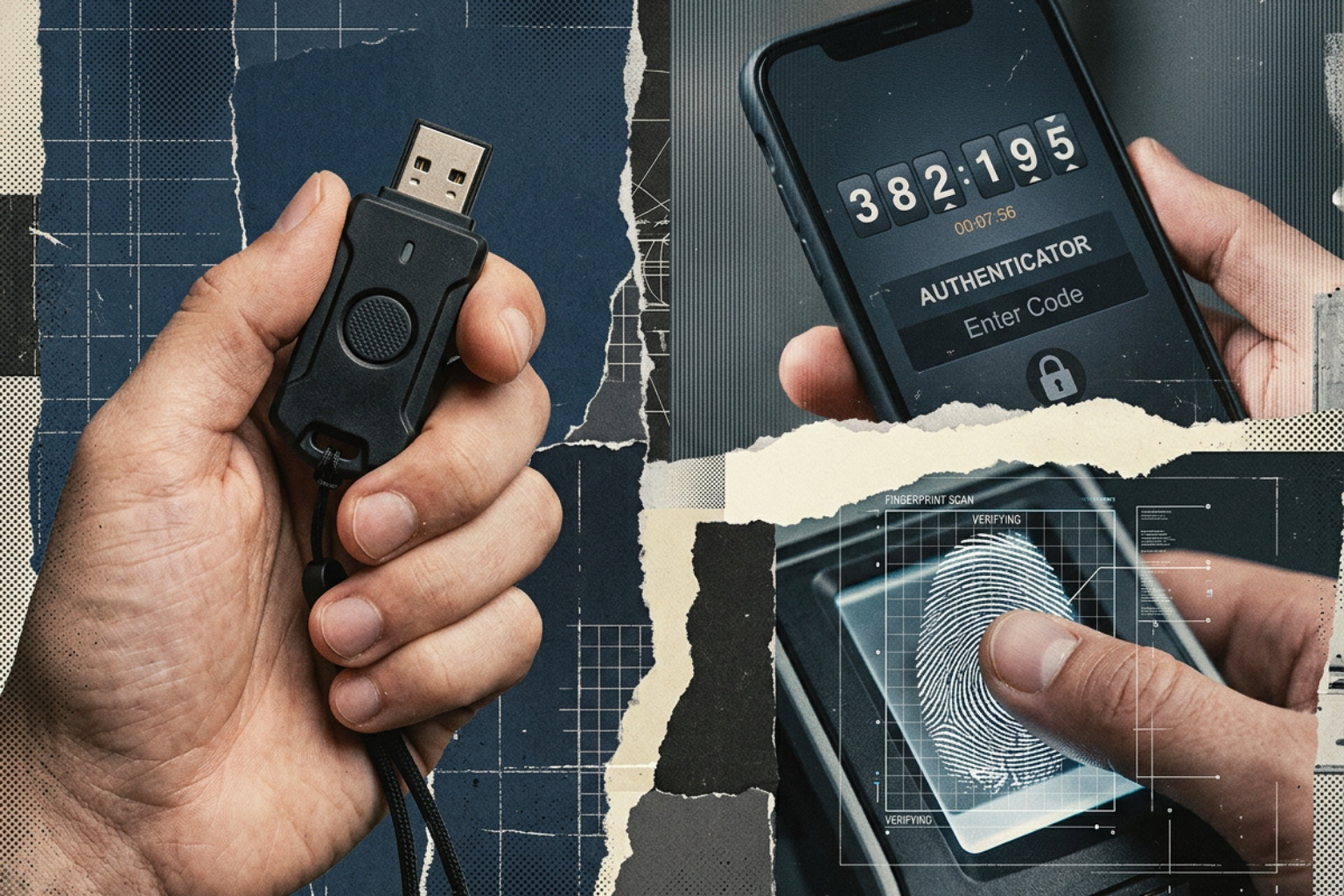
- Possession (Something you have): This is a physical object or device. Examples include your smartphone, a hardware token, an offline recovery sheet, or a dedicated security device like EveryKey.
- Inherence (Something you are): This is your unique biology, verified through biometrics like fingerprint scans, Apple's Face ID, or iris recognition.
For an authentication process to qualify as true 2FA, it must require two distinct factors. Entering your password and then entering a PIN does not count as 2FA; both are knowledge factors. If an attacker installs a keylogger on your machine, they can capture both. True 2FA forces the attacker to compromise both your digital mind (the password) and your physical pocket (your phone or hardware key).
For a deeper dive into how this basic security handshake works, check out What is a 2FA and Why It’s Essential for Your Online Security?.
Historically, authentication was simple because networks were isolated. As systems moved to the cloud, the need for standardized second factors grew. To see how these protocols evolved from early hardware tokens to modern standards, read the History of Multi-Factor Authentication.
Today, organizations like the National Institute of Standards and Technology (NIST) define strict guidelines on how these factors should be used. NIST's Special Publication 800-63B outlines standard Authenticator Assurance Levels (AALs), warning that software-based methods like SMS are vulnerable to routing attacks and should be replaced with cryptographic hardware or software authenticators wherever possible.
Why a Robust Two Factor Authentication Setup is Non-Negotiable
If you run a business or manage an IT environment, relying on passwords alone is a massive operational risk. The math is simple:
- 86% of data breaches involve stolen, phished, or compromised credentials.
- 68% of breaches are attributed to the human element, which includes employees falling for credential harvesting pages or using easily guessable passwords.
- Cybercriminal marketplaces are flooded with more than 20 billion leaked credential pairs.
Without a robust 2FA setup, a single employee using their dog's name as a password on an external forum can compromise your entire corporate network. Implementing 2FA acts as a critical safety net. Even if a phishing campaign successfully tricks an employee into surrendering their password, the attacker cannot bypass the secondary possession or inherence check. To learn more about how this mechanism protects corporate networks in high-threat environments, explore Two-Factor Verification: Strengthening Account Security in a High Threat World.
Evaluating 2FA Methods: SMS vs. Authenticator Apps vs. Hardware Keys
When you begin your two factor authentication setup, you will have to choose which secondary factor to use. These methods vary wildly in their security posture, ease of deployment, and resistance to targeted attacks.
| Security Level | Method | How It Works | Vulnerabilities | Best For |
|---|---|---|---|---|
| Low | SMS / Voice Call | Code sent over cellular network. | SIM swapping, SS7 interception, phishing. | Casual consumer accounts with no sensitive data. |
| Medium-High | TOTP Authenticator Apps | Local app generates a rotating 6-digit code every 30 seconds. | Real-time phishing proxies, device theft. | General business use, email, and social media. |
| Highest | FIDO2 Hardware Keys | Physical USB/NFC key completes a cryptographic handshake. | Physical loss of the key (mitigated by backups). | Sysadmins, financial accounts, and high-risk targets. |
SMS 2FA: The Illusion of Security
SMS-based verification is the most common method because it requires no user training. However, it is fundamentally flawed.
- SIM Swapping: Attackers use social engineering to convince your mobile carrier to port your phone number to a SIM card under their control. Once completed, all your SMS verification codes bypass your phone and land directly in the attacker's hands.
- Interception: The SS7 cellular routing protocol is notoriously insecure, allowing sophisticated actors to intercept SMS traffic in transit.
TOTP Authenticator Apps: The Modern Standard
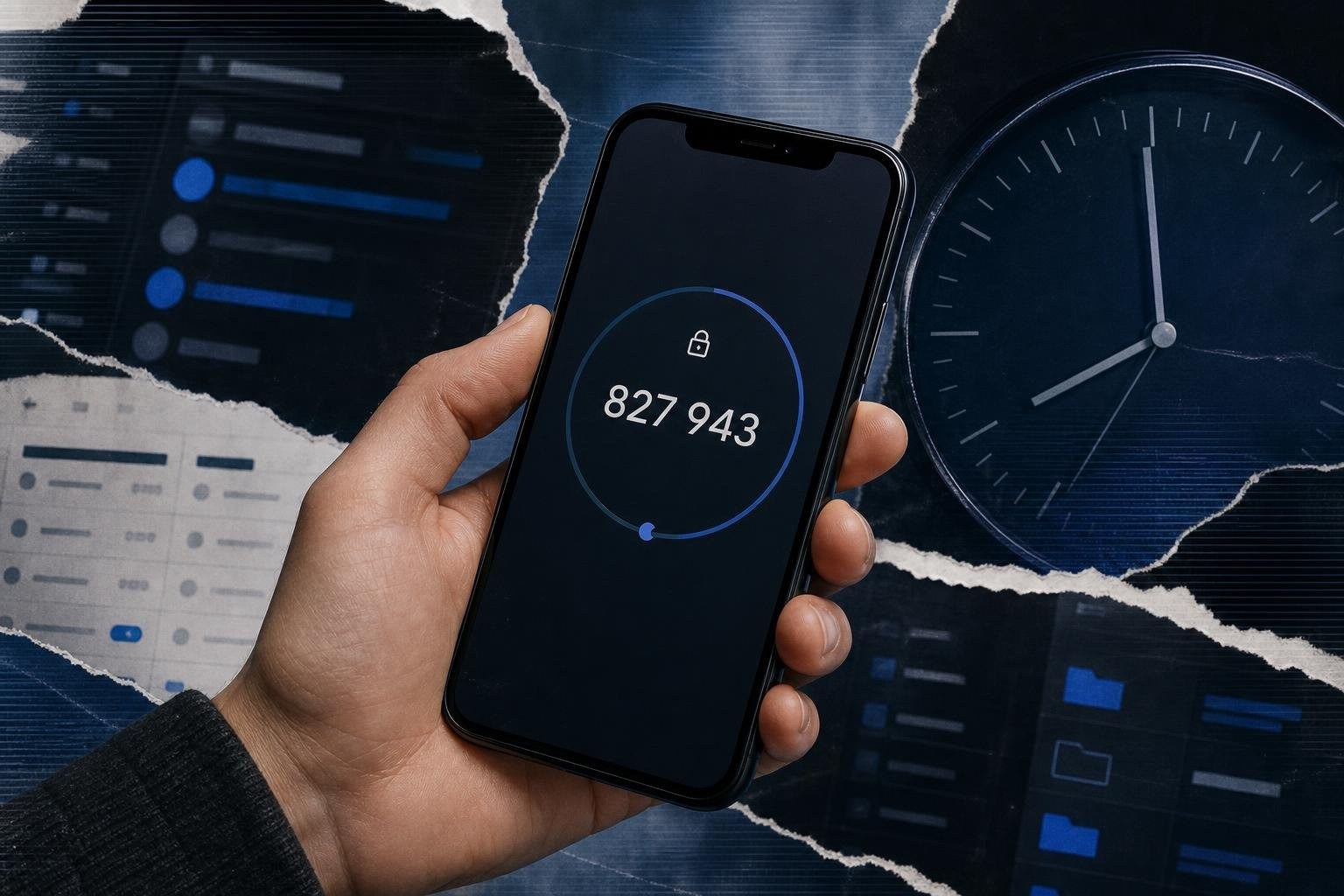
Time-Based One-Time Password (TOTP) apps generate a new 6-digit code every 30 seconds. Because the code generation happens locally on your device based on a shared secret key exchanged during setup, it does not rely on a cellular network. This eliminates the risk of SIM swapping entirely.
To understand why this is the minimum standard for modern accounts, read Why Every Online Account Needs a Multi-Factor Authentication App. For a closer look at how these apps function, see Authenticator App: The Secure Modern Way to Protect Your Online Accounts.
Hardware Security Keys: Phishing-Resistant Protection
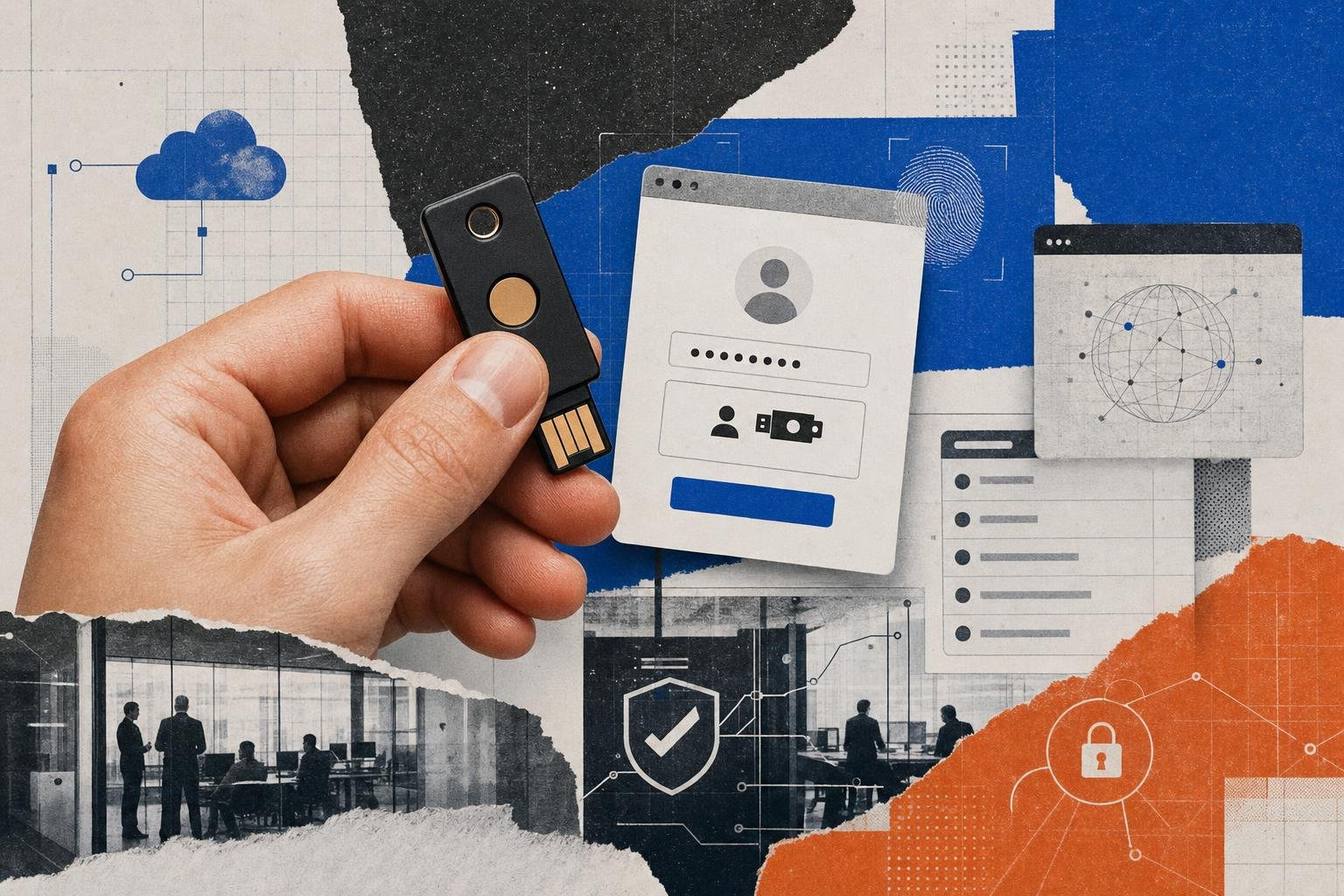
The gold standard of 2FA is FIDO2/WebAuthn-compliant hardware security keys. Devices like YubiKey or EveryKey's physical security systems use public-key cryptography to authenticate. When you log in, the browser communicates directly with the hardware key. The key will only authorize the login if the domain in the browser matches the domain registered to the key. This makes FIDO2 keys completely immune to traditional phishing sites, as the key will refuse to send credentials to a spoofed URL.
The Rise of Passkeys and Passwordless Authentication
We are rapidly moving toward a world where passwords do not exist. Passkeys represent the next evolutionary step in security, built on the FIDO2 standard.
Instead of a password and a second factor, a passkey combines both into a single, passwordless step. When you register a passkey, your device generates a unique cryptographic key pair:
- Public Key: Stored on the service provider’s server (e.g., Google or Microsoft).
- Private Key: Stored securely in your device’s hardware security module (like Apple’s Secure Enclave or Android’s Keystore).
To log in, you simply unlock your device using your local biometric check (Face ID, fingerprint) or device PIN. Your device signs a cryptographic challenge from the server using its private key, confirming your identity instantly. Because the private key never leaves your physical device and cannot be read, typed, or phished, passkeys offer maximum security with zero user friction.
For a comprehensive breakdown of how this modern architecture fits into your security roadmap, read Multi-Factor Authentication: Your Complete Guide to Enhanced Security.
Step-by-Step Two Factor Authentication Setup for Major Platforms
Setting up 2FA differs slightly from platform to platform. Below are step-by-step instructions for configuring 2FA on the most common consumer and enterprise services.
Before choosing an authenticator app for these steps, you may want to compare your options. Take a look at the Best 2 Factor Authenticator Guide 2026 to find the right tool for your workflow.
Google Account Two-Step Verification
Google refers to 2FA as "2-Step Verification." By default, Google encourages the use of "Google Prompts" (push notifications sent to your signed-in mobile devices) or passkeys.
- Go to your Google Account Security Settings.
- Under the "How you sign in to Google" section, click on 2-Step Verification.
- Click Get Started and verify your identity by entering your password.
- Google will list your eligible devices that can receive Google Prompts. Click Continue.
- Add a backup phone number in case your prompts fail, then verify it via SMS or voice call.
- Click Turn On to complete the initial setup.
To add a hardware security key (Recommended for high-risk accounts):
- On the 2-Step Verification page, scroll down to Security Key.
- Click Add security key and select Physical security key.
- Plug your hardware key (such as EveryKey or a standard FIDO2 key) into your computer's USB port or tap it via NFC. Refer to Google's official documentation on using a security key for 2-Step Verification on Android if you are setting this up on a mobile device.
- Tap the physical button on your key when prompted to complete enrollment.
Microsoft Account and Office 365 MFA
Microsoft accounts support passwordless entry and standard TOTP configurations. For enterprise Office 365 environments, your administrator must first enable MFA policies in the Microsoft Entra ID admin center.
For Personal Microsoft Accounts:
- Log in to account.microsoft.com/security.
- Click on Manage how I sign in (or Advanced security options).
- Under Two-step verification, click Turn on.
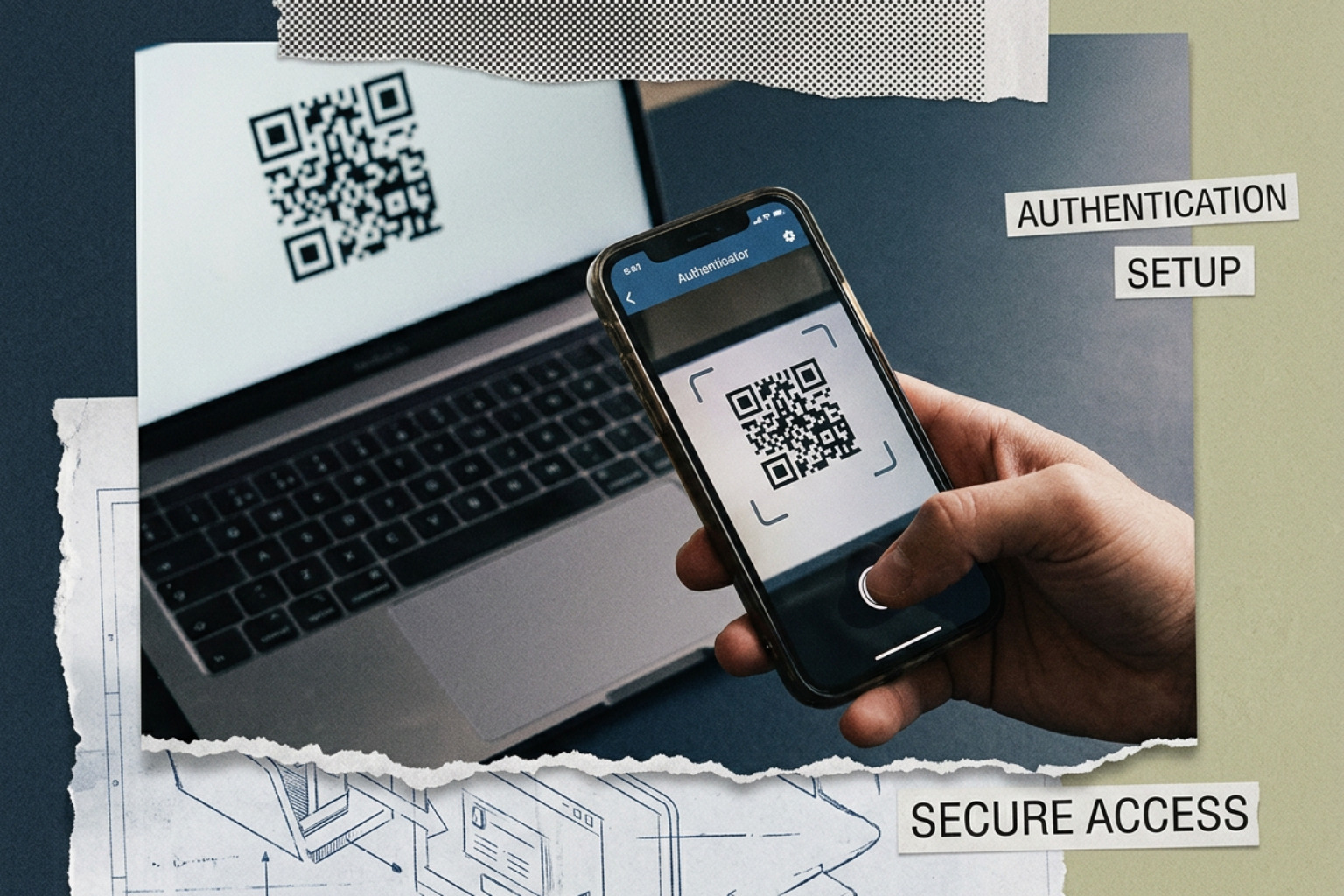
- Follow the on-screen prompts. Microsoft will suggest downloading the Microsoft Authenticator App. If you prefer to use a third-party app, choose "set up a different TOTP app" and scan the displayed QR code.
- Save the generated Recovery Code in a secure, offline location.
Note on Legacy Apps: Some older desktop email clients (like older versions of Outlook) do not support modern MFA handshakes. If you use these legacy systems, you will need to generate an App Password from this security portal to log in.
Apple Account Security on macOS and iOS
Apple integrates 2FA directly into the operating system. It is mandatory for using features like Apple Pay, iCloud Keychain, and "Sign in with Apple."
On an iPhone or iPad:
- Open the Settings app and tap your name at the top.
- Tap Sign-In & Security.
- Tap Two-Factor Authentication and toggle it On.
- Enter a trusted phone number to receive verification codes and verify it.
On a Mac:
- Open System Settings and click your name at the top of the sidebar.
- Click Sign-In & Security.
- Click Turn on Two-Factor Authentication and follow the instructions. For detailed steps, check the Apple Support Guide for macOS Two-Factor Authentication.
Once enabled, whenever you sign in to your Apple Account on a new device or browser, a prompt with a map and a 6-digit code will automatically pop up on your trusted Apple devices.
Pro Tip: If you are offline and need a verification code to log in on a secondary device, you can generate one manually on your Mac by going to System Settings > [Your Name] > Sign-In & Security and clicking Get a Verification Code.
Epic Games and Twitch Setup
Gaming and entertainment platforms are frequent targets for credential stuffing attacks because in-game items, virtual currency, and channels hold real-world value.
Epic Games (Fortnite):
- Log in to your Epic Games account and navigate to the Account Settings portal.
- Click on the Password & Security tab.
- Scroll down to the Two-Factor Authentication section.
- Toggle Enable Authenticator App on.
- Scan the QR code with your chosen TOTP app and enter the 6-digit code to confirm. Bonus: Epic Games rewards players who enable 2FA with exclusive in-game items, such as the "Boogie Down" emote in Fortnite.
Twitch:
- Log in and go to your Creator Dashboard or Settings.
- Click on the Security and Privacy tab.
- Scroll to the Security section and select Set Up Two-Factor Authentication.
- Twitch requires you to verify your email address first, followed by entering your phone number.
- Scan the QR code using your authenticator app. For complete troubleshooting steps, check Twitch's official guide on Setting up Two-Factor Authentication (2FA). Note: Twitch automatically provisions a backup Authy account linked to your phone number during this process.
GitHub and Developer Environments
GitHub mandates 2FA for all active contributors to protect the software supply chain. A compromised developer account can allow malicious actors to inject backdoor vulnerabilities into open-source repositories.
- Click your profile photo in the upper-right corner of GitHub and select Settings.
- In the "Access" section of the sidebar, click Password and security.
- Under "Two-factor authentication", click Enable two-factor authentication.
- Choose Set up using an app to display the QR code.
- Scan the QR code with your TOTP app, save your recovery codes immediately, and enter the active 6-digit code to verify.
- For step-by-step guidance on advanced configurations (like registering physical security keys or configuring CLI access), refer to the GitHub 2FA Configuration Documentation.
Note: GitHub implements a mandatory 28-day check-up period after setup. If you do not perform a successful 2FA login within 28 days, GitHub will prompt you to re-verify your configuration to ensure you aren't locked out.
Mitigating Risks: SIM Swapping, Phishing, and MFA Fatigue
While a two factor authentication setup dramatically increases your defensive posture, advanced threat actors have developed tactics to bypass basic 2FA configurations. Understanding these attack vectors allows you to build a more resilient security architecture.
- SIM Swapping and SS7 Exploits: As discussed, these attacks target carrier routing to steal SMS codes. The mitigation is simple: disable SMS as an authentication option entirely and migrate to TOTP apps or FIDO2 keys.
- Adversary-in-the-Middle (AiTM) Phishing: Traditional phishing links steal your password. AiTM phishing is more sophisticated. The attacker deploys a proxy server between you and the legitimate website. When you enter your password and your TOTP code, the proxy grabs them in real-time, logs into the real service, steals your session cookie, and establishes a persistent session. The only defense against AiTM phishing is FIDO2/WebAuthn (passkeys or hardware keys), which verify the actual domain name before releasing credentials.
- MFA Fatigue (Push Bombing): In this scenario, an attacker who has stolen your password triggers hundreds of push notifications to your authenticator app in the middle of the night. Overwhelmed or half-asleep, the user eventually taps "Approve" just to stop the notifications. To counter this, modern systems use number matching, forcing you to type a specific number displayed on the login screen into your authenticator app to complete the login.
To read more about how threat actors target authentication protocols and how to defend against them, check out Factor Authentication: The Key to Modern Account Security.
Best Practices for Managing Your Two Factor Authentication Setup
To ensure your defensive measures don't turn into administrative headaches, follow these industry best practices:
- Keep Your Recovery Codes Safe: Every service generates a list of one-time-use backup or recovery codes during 2FA setup. If you lose your phone, these codes are your only way back in. Print them out and store them in a physical safe, or keep them in a highly secure, offline password manager.
- Configure Multiple Hardware Keys: If you use physical security keys, register at least two keys to your primary accounts (like Google and Microsoft). Keep one on your keychain and the other in a secure home office drawer. If your primary key is lost or damaged, you won't be locked out.
- Use Encrypted Cloud Backups for TOTP: If your phone drops into the ocean, your TOTP configurations go with it unless you have backups enabled. Use authenticator apps that support encrypted cloud sync (like Microsoft Authenticator, Authy, or 1Password) so you can easily restore your tokens on a new device.
- Audit Your Access Points: Periodically review which devices are logged into your accounts and revoke access for any old or unused hardware.
For a deeper analysis of selecting the right authentication app to manage your credentials, read The Best Authentication App for Securing Your Online Accounts.
Disaster Recovery: What to Do When You Lose Access
The biggest fear users have when configuring a two factor authentication setup is getting locked out of their own accounts. If you lose your phone or security key, recovery can be a slow, deliberate process — which is actually a sign of good security. If a service allowed you to bypass 2FA instantly with a quick phone call, an attacker could do the same.
Here is your step-by-step disaster recovery plan:
- Use Your Backup Codes: If you saved your recovery codes during setup, click "Try another way" on the login prompt, select "Enter recovery code," and use one of your saved strings.
- Leverage Secondary Methods: If you configured a backup email address, a secondary phone number, or an alternative hardware key, use those options during the login handshake.
- Initiate Account Recovery: If you have no backups, you must contact the platform's support team. For high-security environments like Google or Apple, this process can take anywhere from 3 to 5 business days. The platform will run identity verification checks, verify your IP history, and cross-reference your registration details before disabling 2FA.
- Enterprise Lockouts: If you are locked out of an enterprise account (like Office 365 or Google Workspace), contact your internal IT Helpdesk. A system administrator can temporarily bypass MFA, reset your authentication methods, or generate a temporary access pass to let you log in and register a new device.
To understand the balance between account recovery friction and robust corporate security, read Beyond Passwords: The Benefits of Multifactor Authentication in a Modern Security Landscape.
Frequently Asked Questions about Two-Factor Authentication
Can two-factor authentication be bypassed or hacked?
Yes. While 2FA makes unauthorized access significantly harder, it is not infallible. Attackers bypass 2FA using techniques like SIM swapping (for SMS-based codes), real-time Adversary-in-the-Middle (AiTM) phishing proxies, session hijacking (stealing active login cookies from a compromised browser), and social engineering helpdesks into resetting account credentials.
What is the difference between 2FA and MFA?
Two-Factor Authentication (2FA) is a specific subset of Multi-Factor Authentication (MFA). 2FA requires exactly two distinct factors of verification (e.g., a password and a physical key). MFA is a broader term that requires two or more factors. In enterprise settings, MFA might require three factors (e.g., a password, a physical key, and a biometric face scan) or incorporate contextual factors like your physical location or login time.
Why is SMS 2FA discouraged by security frameworks like NIST?
NIST and other global security bodies discourage SMS 2FA because cellular networks are fundamentally insecure. Phone numbers are vulnerable to SIM swapping, where an attacker tricks a carrier into porting your number to their device. Additionally, SMS traffic can be intercepted via vulnerabilities in global telecommunication routing protocols (like SS7) or harvested by malware installed on the user's phone.
Conclusion
Securing your digital identity in 2026 requires moving beyond the outdated reliance on passwords alone. Whether you are an individual looking to protect your personal identity or an IT professional securing an enterprise network, completing a two factor authentication setup is the single most effective action you can take to stop credential-based attacks.
While software-based authenticator apps provide solid day-to-day security, high-value accounts demand phishing-resistant, hardware-based solutions. Systems like EveryKey bridge the gap between absolute security and everyday convenience, providing robust protection against modern social engineering and credential theft.
Don't wait for a security notification to tell you your credentials have been leaked on the dark web. Take twenty minutes today to audit your accounts, download a secure authenticator, and enable 2FA across your digital footprint.
To explore more advanced strategies for securing your devices and systems, Learn more about 2FA best practices on Unlocked.