

Local Admin Rights 101: What They Are & How They Work

Why local admin rights are the ultimate security double-edged sword
If you are trying to secure a modern business in July 2026, understanding local admin rights is one of the most critical steps you can take to protect your network.
To put it simply, here is a quick breakdown of what they are, what they do, and why they matter for your security:
- What they are: A level of privilege that gives a user account full control over a specific, individual device (like a laptop or workstation).
- What they allow: Users can install any software, change system configurations, edit the registry, and even disable security software.
- The security risk: If a hacker compromises an account with these rights, they can instantly bypass local security tools, steal passwords from memory, and move laterally to other systems on your network.
- The business impact: While removing these privileges dramatically lowers your attack surface, doing it poorly can lead to a flood of IT support tickets and frustrated employees who cannot run the basic tools they need.
In the past, giving everyone administrative access was the easy way to keep the peace. If a developer or sales rep needed a new application, they just downloaded and installed it. No IT tickets, no waiting, and no friction.
But today, that convenience is a major liability. Industry data shows that operating as a standard user instead of an administrator can prevent up to 98% of the critical vulnerabilities affecting the Windows operating system.
It is the classic IT security struggle: How do you lock down your endpoints without making your team's daily work grindingly slow?
Finding that balance is the key to modern user permission management access control best practices for it teams. Let’s dive into how these privileges work, why they are a goldmine for modern hackers, and how you can manage them without breaking your team's daily workflow.
Understanding Windows Local Accounts and Privileges
To truly understand why unmanaged local admin rights are so dangerous, we have to look under the hood of the Windows operating system. Windows relies on a built-in security architecture designed to separate standard user tasks from administrative system modifications.
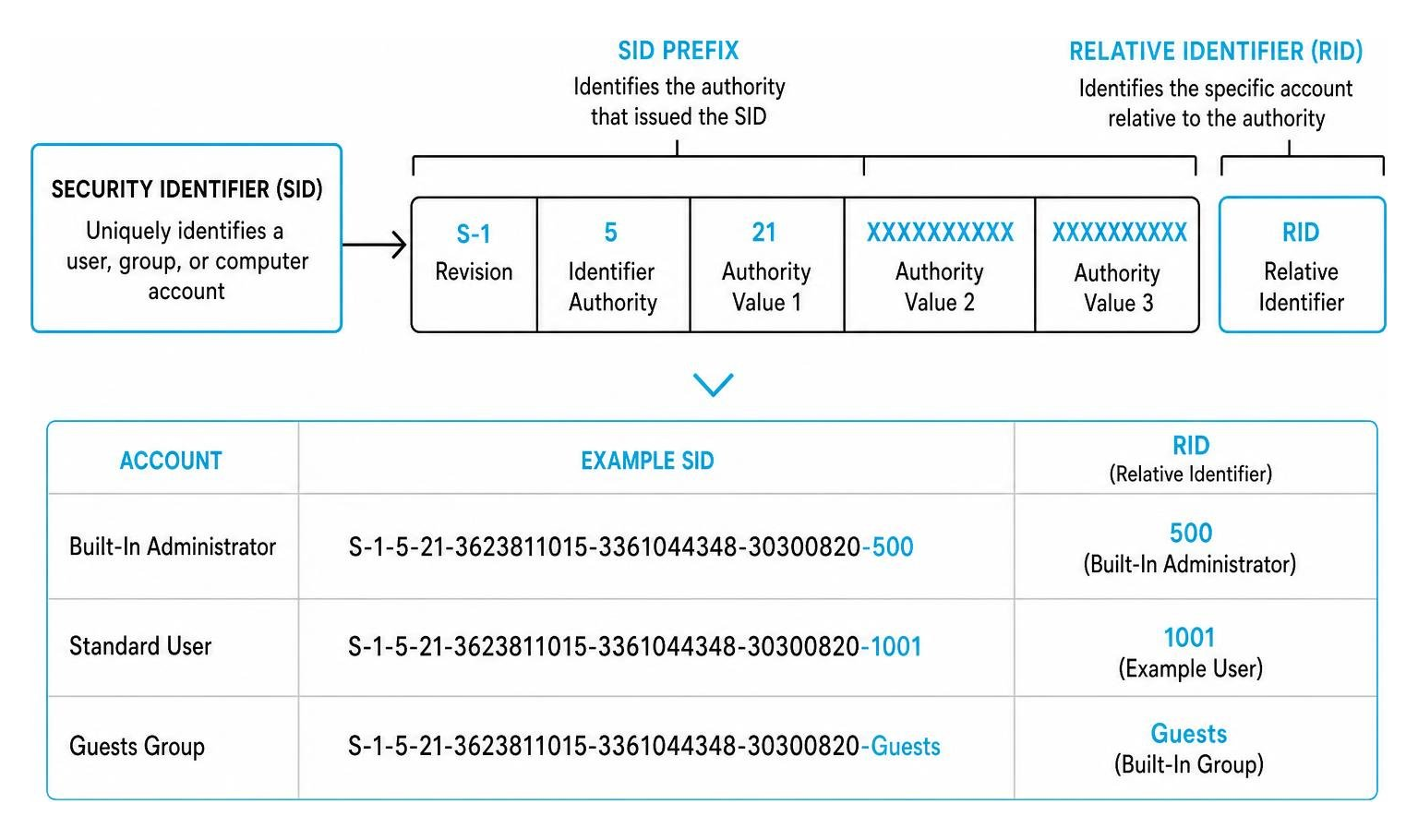
Every user account on a Windows machine is assigned a unique Security Identifier (SID). A SID is a variable-length data structure that uniquely identifies a user, group, or computer account within a security database.
Within this SID is a value called the Relative Identifier (RID). The RID is the final portion of the SID that identifies a specific account or group relative to the authority that issued it. For example:
- The Built-In Administrator (RID 500): This is the master local account created during operating system installation. It possesses unrestricted power over the local machine. It cannot be deleted or locked out, though it can—and should—be disabled or renamed.
- The Guest Account (RID 501): This account is designed for temporary users and has highly restricted access by default. In modern enterprise environments, keeping this account disabled is a basic security baseline.
For a deeper dive into how Windows defines these accounts, you can explore the official Microsoft documentation on Local accounts | Microsoft Learn and older legacy architectures under Local Accounts | Microsoft Learn).
What Are Local Admin Rights?
When we talk about local admin rights, we are referring to any account that is a member of the local Administrators group on an endpoint.
By default, Windows operates on a security model that distinguishes between standard users and administrators. A standard user runs with a restricted security token. They can browse the web, run pre-installed productivity applications, and change minor personal settings, but they cannot perform system-wide changes.
An administrator, however, possesses a token that contains the administrative SID. When an administrator attempts to perform a task that requires elevated privileges—such as installing a driver or modifying system files—Windows utilizes User Account Control (UAC) to prompt the user.
This process, known as token filtering, splits the administrator's identity into two tokens: a standard user token for daily activities and an elevated token for administrative tasks. The UAC prompt acts as the gatekeeper, requiring the user to explicitly consent before the elevated token is deployed.
Default Local Accounts and Active Directory Integration
Endpoints do not exist in a vacuum. In an enterprise network, local accounts interact directly with Windows system services and Active Directory (AD) domain controllers.
Beyond human users, the Windows operating system relies on default system accounts to run services securely:
- SYSTEM (S-1-5-18): This is the most powerful security context on a Windows machine. It has complete control over the local operating system, including the ability to access system files and act as the computer on the network.
- NETWORK SERVICE (S-1-5-20): A built-in account with fewer privileges than SYSTEM, designed specifically to run network-facing services. It uses the computer's network credentials to authenticate to remote resources.
- LOCAL SERVICE (S-1-5-19): A highly restricted local account used for background services that do not require administrative privileges or network access.
When workstations and member servers join an Active Directory domain, managing these local accounts becomes a centralized challenge. AD uses special mechanisms to protect administrative accounts across the domain.
For instance, the AdminSDHolder object acts as a security template. Every hour, a background process compares the security permissions of protected administrative groups (like Domain Admins) against the AdminSDHolder template, automatically overwriting any unauthorized changes to prevent privilege escalation.
Similarly, the KRBTGT account serves as the service account for the Kerberos Key Distribution Center (KDC) on domain controllers, generating the Ticket-Granting Tickets (TGTs) that allow users to access network resources without re-authenticating.
Understanding how these accounts tie into your broader directory is essential for maintaining proper identity and access management iam the complete guide to security access and credential management. To learn more about how default accounts operate within a directory environment, refer to Active Directory Accounts | Microsoft Learn.
The Security Risks of Unmanaged Local Admin Rights
Leaving local admin rights unmanaged across your endpoints is like giving every employee a master key to the office building. It may prevent them from ever getting locked out of an office, but it also means a single lost key compromises the entire facility.
Vulnerability Exploitation and Human Error Statistics
According to the World Economic Forum, an overwhelming 95% of cybersecurity issues can be traced back to human error. Whether it is an employee falling for a sophisticated phishing email, clicking an unsafe link, or downloading an unapproved utility, human actions are the primary entry point for threat actors.
However, human error only becomes a catastrophic breach when paired with excessive privileges. This is where the statistics around local admin rights become impossible to ignore:
- 94% of Microsoft vulnerabilities can be mitigated or completely neutralized simply by removing administrative privileges from standard users.
- Roughly 75% of critical Microsoft vulnerabilities published in recent years could have been entirely mitigated by enforcing standard user profiles.
- Over 90% of all Windows OS vulnerabilities rely on the active user possessing administrative rights to execute their payload successfully.
For security teams looking to align with industry-standard frameworks, restricting administrative privileges is a core requirement. CIS Control 4 (Controlled Use of Administrative Privileges) and NIST SP 800-53 both mandate the removal of permanent administrative rights to minimize your corporate attack surface.
Without these controls, a standard user running as a local administrator can inadvertently trigger zero-day exploits. For example, CVE-2024-21338—a critical Windows Kernel privilege escalation vulnerability exploited in the wild—becomes significantly easier for an attacker to leverage if they have already established a foothold on an endpoint with administrative privileges.
Proactively managing these entry points is the first step in addressing your identity and access management risks the top security threats defining 2026.
Attack Vectors: Pass-the-Hash, Ransomware, and Lateral Movement
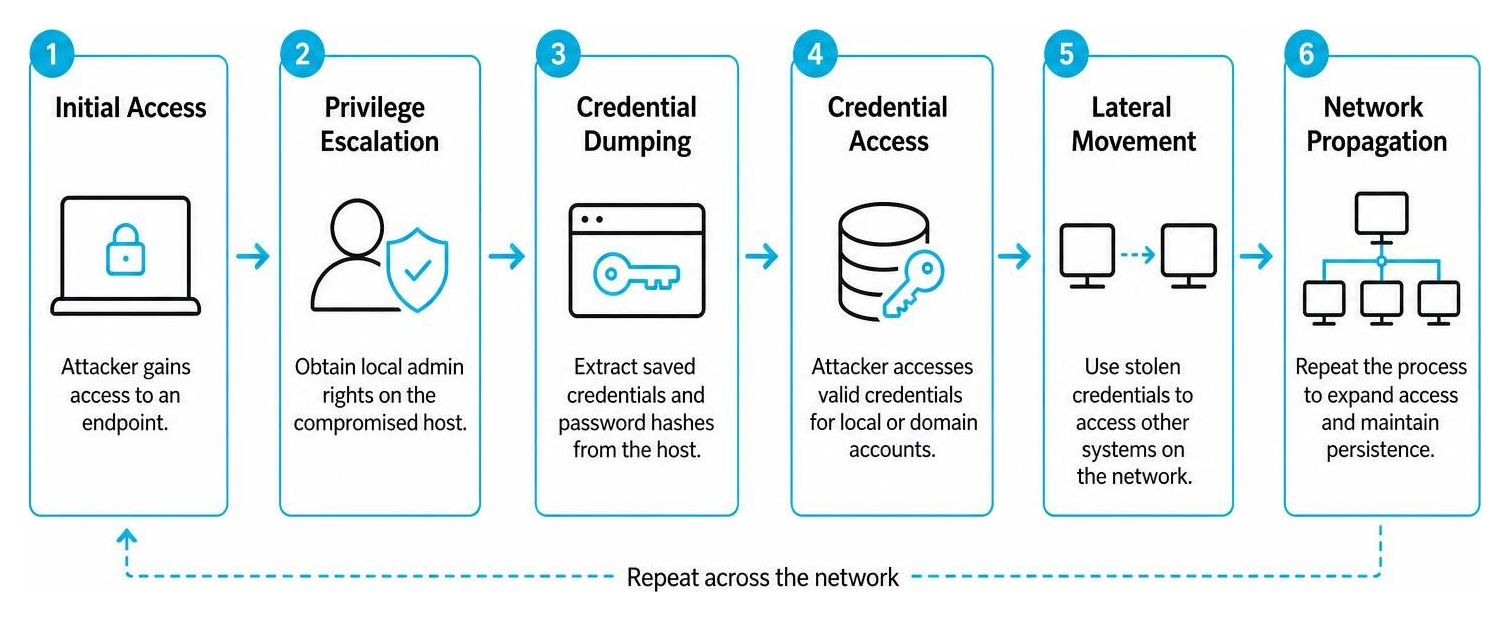
When an attacker compromises a machine where the user has local admin rights, they do not just own that single laptop; they gain a launchpad for a full-scale network intrusion.
First, administrative access allows the attacker to perform credential dumping. Using tools like Mimikatz, they can extract plaintext passwords or password hashes directly from the Local Security Authority Subsystem Service (LSASS) memory space.
If your organization uses a standardized system image where the local administrator account shares the exact same password across hundreds of workstations, the attacker can use a technique called Pass-the-Hash (MITRE ATT&CK T1550.002). Using automated security tools like CrackMapExec, the attacker can pass the stolen hash to adjacent machines on the network.
Because the local admin credentials match, they instantly gain administrative access to those systems without ever needing to crack the password.
Furthermore, administrative rights allow ransomware to run with maximum destructive potential. With standard user privileges, ransomware can only encrypt files the specific user has permission to modify.
But with local admin rights, the malware can disable local antivirus engines, delete Volume Shadow Copies (preventing easy data recovery), alter local certificate stores, and encrypt system-critical files, rendering the entire endpoint completely unusable.
Securing these endpoints is a fundamental part of your guide to managing privileged user access and security risks.
Architectural Shifts: From Split-Tokens to Just-In-Time Protection
As the threat landscape has evolved, Microsoft and the broader security industry have had to rethink how administrative privileges are handled at the operating system level. The traditional model of granting permanent, static admin rights is incompatible with a modern zero trust security building a stronger future with zero trust architecture model.
Limitations of the Legacy Split-Token UAC Model
For nearly two decades, Windows has relied on User Account Control (UAC) and the split-token model to balance security and usability. When an administrator logs on, the system creates two separate access tokens.
Most applications run under the standard user token, and when an administrative action is requested, a UAC prompt appears, asking the user to approve the elevation.
The critical issue is that UAC is not a true security boundary. It is a convenience and developer-forcing feature designed to prevent accidental system changes and encourage software developers to write applications that do not require administrative rights.
Over the years, security researchers and attackers have developed highly reliable bypass techniques. Open-source tools like UACMe contain dozens of documented methods to silently bypass UAC prompts, allowing malware to elevate its privileges from standard to administrative without alerting the user.
Once an attacker compromises a system, they can manipulate these tokens, hijack active administrative sessions, and execute malicious code directly in the kernel space. This fundamental flaw makes relying on traditional UAC a massive risk for modern enterprise user access why proper access management is essential for modern security.
Windows 11 Administrator Protection and Shadow Accounts
To address the limitations of the split-token model, Microsoft introduced a major architectural shift in Windows 11: Administrator Protection.
This new platform security feature represents a fundamental departure from legacy privilege elevation. Instead of using a persistent, free-floating administrator account that relies on UAC prompts, Administrator Protection introduces system-managed, isolated shadow accounts.
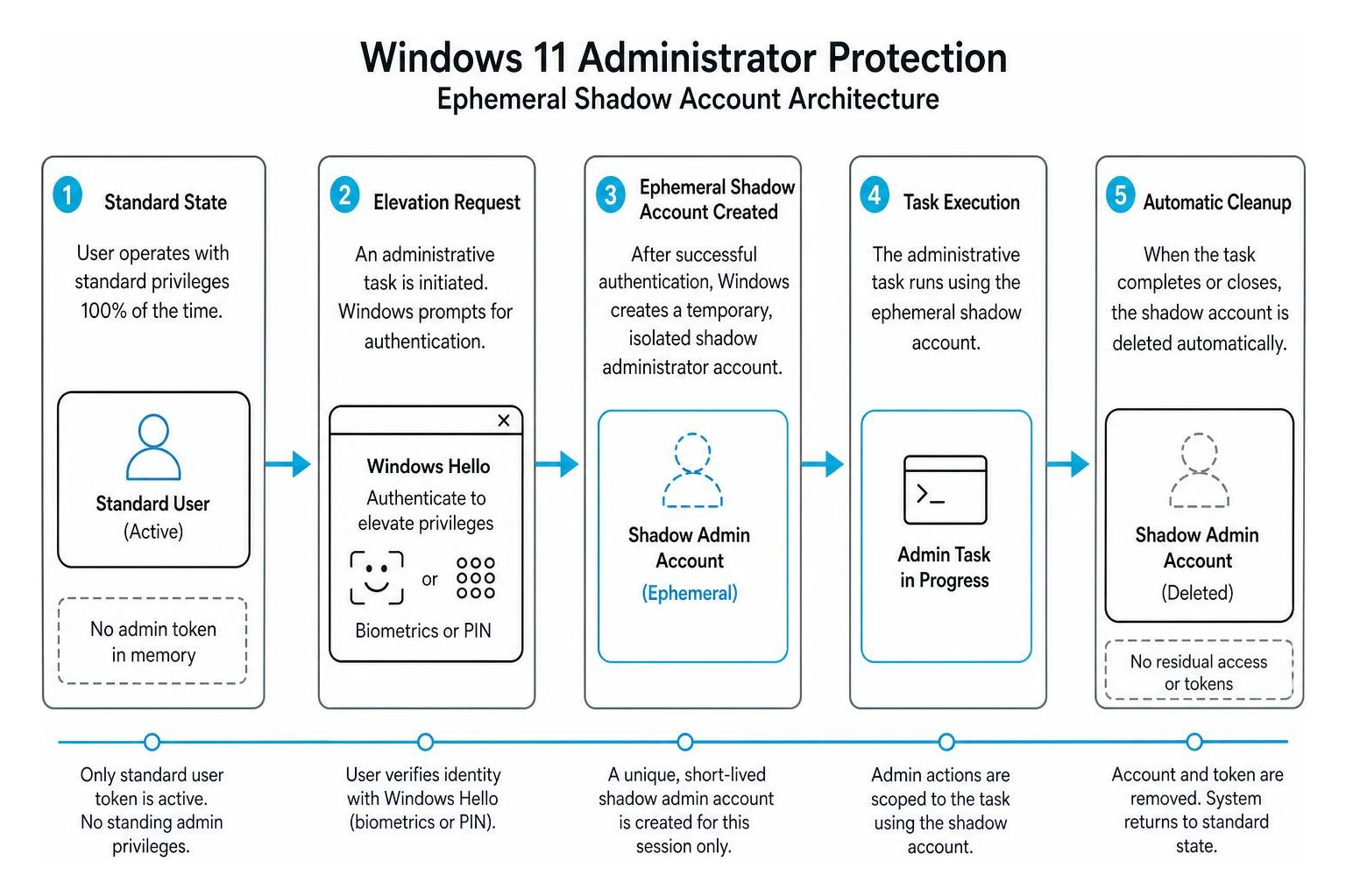
Here is how the process works under this new architecture:
- Standard State: The user operates with standard, non-administrative privileges 100% of the time. There is no active administrative token resting in memory for malware to hijack.
- Elevation Request: When an administrative task is initiated, Windows does not simply elevate the active user's token. Instead, it prompts for authentication using Windows Hello (biometrics or PIN).
- Ephemeral Shadow Account: Once authenticated, Windows creates a temporary, isolated shadow administrator account. This account exists only for the exact duration of the specific task.
- Instant Destruction: The moment the installation or configuration change is complete, the shadow account and its associated cryptographic tokens are immediately destroyed.
By shifting to ephemeral tokens and biometric verification, Windows 11 Administrator Protection makes living-off-the-land attacks and token hijacking significantly harder to execute. Even if malware is running in the background, it cannot hijack an administrative token because no such token permanently exists.
This model aligns perfectly with the principles of zero trust authentication securing access in a borderless world.
How to Remove Local Admin Rights Without Disrupting Workflows
While removing local admin rights is the single most effective way to secure your endpoints, doing it manually can cause massive friction. If standard users have to submit a helpdesk ticket every time they need to update a basic application, your IT team will be buried in support requests, and employee productivity will plummet.
To successfully implement the Principle of Least Privilege (PoLP) without breaking your daily business operations, you must choose the right management strategy.
| Management Strategy | Security Level | IT Overhead | User Friction | Best Use Case |
|---|---|---|---|---|
| Manual GPO Hardening | Moderate | High | High | Highly standardized, static environments with minimal software changes. |
| Windows LAPS | High | Low | Moderate | Securing the built-in local administrator passwords across domain-joined machines. |
| Just-In-Time (JIT) / EPM | Very High | Low | Low | Dynamic enterprise environments, developers, and remote workforces. |
Best Practices for Restricting Local Admin Rights
To successfully transition your organization away from permanent local admin rights, follow these foundational guidelines:
- Enforce Account Separation: IT administrators should never use their administrative accounts for daily tasks like reading email, browsing the web, or accessing productivity suites. Administrators should have two distinct accounts: a standard user account for daily work and a separate, highly restricted administrative account used only when necessary.
- Establish a Centralized Inventory: You cannot secure what you do not know exists. Use automated scripts or centralized management tools to audit your endpoints and build a comprehensive register of every account currently residing in the local Administrators group.
- Perform Regular Access Reviews: Privilege creep is a major risk. Over time, employees are granted temporary admin rights for a specific project, and those rights are forgotten and left active. Implement scheduled access reviews to ensure privileges are revoked as soon as they are no longer required.
For a comprehensive blueprint on setting up these controls, read our guide on local admin rights best practice essential guidelines for security and explore the core principles of privileged access governance.
Native Windows LAPS and Just-In-Time (JIT) Elevation
To manage local admin rights at scale, organizations typically combine native operating system tools with modern Endpoint Privilege Management (EPM) platforms.
Microsoft Windows LAPS (Local Administrator Password Solution)
Windows LAPS is a native Microsoft tool that automatically manages and randomizes the password of the built-in local administrator account on domain-joined or Microsoft Entra ID-joined devices.
Instead of having a single, shared password across your entire fleet, LAPS generates a unique, highly complex password for each individual machine. This password is securely stored in Active Directory or Microsoft Entra ID, and it rotates automatically on a scheduled basis.
LAPS is highly effective at stopping Pass-the-Hash attacks and lateral movement, but it is primarily an IT tool; it does not solve the problem of standard users needing to run specific applications with elevated privileges.
Just-In-Time (JIT) Elevation and EPM
To bridge the gap between security and productivity, organizations deploy Endpoint Privilege Management (EPM) solutions. Tools like Admin By Request or CyberFOX AutoElevate allow you to remove permanent admin rights from your users entirely.
When a standard user needs to perform an administrative task—such as installing a pre-approved developer tool or updating a line-of-business application—the EPM agent intercepts the request.
Instead of elevating the user's entire account, the EPM tool elevates only the specific application process. This can be done automatically based on reputation scoring, pre-defined allowlists, or rapid IT approval workflows integrated directly into communication tools like Slack or Microsoft Teams.
Implementing these tools is a major milestone in establishing a robust privileged access management framework. To understand how these systems operate behind the scenes, check out our deep dive on how pam works and the broader the top privileged access management benefits for enhanced security.
Step-by-Step Hardening: Securing Local Accounts via GPO and Native Controls
For organizations looking to secure their endpoints using native Windows controls, Group Policy Objects (GPOs) are the primary tool for implementing restrictive security policies.
Restricting Interactive Logons and Network Access
One of the most effective ways to stop lateral movement is to prevent local administrator accounts from logging on over the network or starting interactive sessions on adjacent devices.
To configure these restrictions, open the Group Policy Management Editor and navigate to:
Computer Configuration\Policies\Windows Settings\Security Settings\Local Policies\User Rights Assignment
Within this folder, configure the following policy settings:
- Allow log on locally (SeInteractiveLogonRight): This policy determines which users can physically sit at the machine or access the console. On sensitive systems like Domain Controllers, this should be restricted strictly to the Administrators group. On standard workstations, ensure that the broad "Users" group is not granted local logon rights to systems they have no business accessing.
- Deny log on locally: This is an explicit override. If a user or group is added here, they cannot log on locally, even if they are members of the Administrators group.
Compatibility Warning: Be careful when modifying local logon policies on application servers. For example, web servers running Internet Information Services (IIS) rely on the local IUSR account having local logon rights. Removing these default permissions can immediately break your web applications.
To ensure you are configuring these settings safely, refer to the official Microsoft policy guide on Allow log on locally - security policy setting - Windows 10 | Microsoft Learn.
Enforcing Explicit Deny Policies via Group Policy
To completely isolate the built-in local administrator account and prevent attackers from using it to propagate a compromise across your network, you should implement explicit "Deny" policies.
Navigate back to the Group Policy User Rights Assignment path and configure these four critical countermeasures:
- Deny access to this computer from the network: Add the local
Administratoraccount to this policy. This prevents an attacker from using a compromised local admin credential to access administrative shares (likeC$orADMIN$) remotely. - Deny log on through Remote Desktop Services: Add the local
Administratoraccount here to block RDP-based lateral movement across your workstations. - Deny log on as a batch job: Restricts the local admin account from being used to run scheduled tasks or automated background scripts.
- Deny log on as a service: Prevents the local admin account from being configured as a service account, which is a common persistence technique used by threat actors.
By enforcing these explicit deny policies, you ensure that even if an attacker manages to compromise a local administrator password, they cannot use it to traverse your network.
For a step-by-step technical walkthrough of these configurations, you can review the official Microsoft hardening guide: WindowsServerDocs/identity/ad-ds/plan/security-best-practices/Appendix-H--Securing-Local-Administrator-Accounts-and-Groups.md at main · MicrosoftDocs/windowsserverdocs.
Implementing these native configurations is a key component of building a strong security control the foundation of modern cybersecurity defense.
Frequently Asked Questions about Local Admin Rights
Why are local admin rights considered a major security risk?
Local admin rights give an account unrestricted control over an endpoint. If a hacker compromises an account with these privileges, they can bypass local security controls, disable antivirus software, install malicious applications (like keyloggers or ransomware), and dump password hashes from memory.
These stolen credentials are then used to move laterally across the corporate network, turning a minor workstation compromise into a massive domain-wide breach.
How does removing local admin rights impact developer productivity?
Historically, developers have demanded local admin rights to install compilers, run local databases, and modify system files. Simply stripping these rights without an alternative can halt development workflows and overwhelm the IT helpdesk.
To avoid this, modern organizations use Endpoint Privilege Management (EPM) tools. These solutions allow developers to run specific, pre-approved developer utilities with elevated privileges, or request temporary administrative access that is automatically approved based on the security context, keeping workflows fast and secure.
What is the difference between local admin rights and domain admin rights?
The difference lies entirely in the scope of authority:
- Local Admin Rights: Grant administrative control over a single, specific endpoint (like a laptop or member server). They do not grant permission to modify resources on other computers or access domain-wide services.
- Domain Admin Rights: Grant administrative control across the entire Active Directory domain. A domain administrator can access and modify any system, user account, or domain controller within the organization.
While local admin rights are restricted to a single machine, an attacker who compromises a local admin account can often leverage it to steal credentials, move laterally, and eventually escalate their privileges to become a domain administrator.
Conclusion
Securing your business in July 2026 requires moving away from legacy, permissive access models. Managing and removing permanent local admin rights is no longer an optional security project; it is a fundamental requirement for protecting your enterprise from modern ransomware and lateral movement attacks.
By transitioning to standard user profiles, deploying Microsoft LAPS, and utilizing Endpoint Privilege Management (EPM) for Just-In-Time elevation, you can dramatically lower your organization's attack surface while keeping your employees' daily workflows smooth and uninterrupted.
As you build out your modern security posture, consider incorporating advanced identity verification platforms like EveryKey. By replacing static, vulnerable credentials with proximity-based, passwordless authentication, EveryKey integrates seamlessly into a Zero Trust framework. This ensures that only verified users can access sensitive systems and execute administrative tasks, removing the reliance on legacy local administrator passwords entirely.
To explore more strategies for securing your enterprise identities and credentials, visit the Unlocked knowledge platform and check out our comprehensive guide on what is privileged access management.