

How to Roll Back Your Enterprise MFA Policy Without Causing Chaos

When MFA Goes Wrong: What Enterprise Teams Need to Know Before Pulling the Plug
MFA rollback procedures enterprise teams need aren't just a safety net — they're a prerequisite for any serious deployment. If you're here because something broke, here's the short version:
Quick reference: Enterprise MFA rollback sequence
- Verify break-glass accounts work before touching any policies
- Disable Conditional Access policies first (set to Report-Only or Off), then address per-user MFA settings
- Revert Authentication methods policy from "Migration Complete" back to "Migration in Progress" if mid-migration
- For federated domains, run
Remove-MgDomainFederationConfigurationto revert to Managed authentication - Revoke active user sessions after any policy change to prevent stale token abuse
- Document every change with timestamps for your audit trail
- Monitor sign-in logs in real time throughout the rollback window
Now, the full picture.
In July 2026, Microsoft's phased mandatory MFA enforcement for Entra ID administration is no longer a future event — it's the operating reality most enterprise tenants are living inside. That enforcement wave pushed thousands of IT teams to deploy MFA under deadline pressure, often without fully testing the downstream effects on legacy applications, service accounts, or end-user devices.
The result? Rollbacks happen. More often than most teams want to admit.
Between 12% and 18% of users in regulated environments experience an Authenticator app failure within 90 days of deployment. Organizations that skip enforcing backup registration methods see a 40% to 60% spike in support ticket volume. And when a migration tool like ShareGate starts choking on authenticated sessions mid-tenant-migration due to API throttling, the pressure to roll something back — fast — becomes very real.
The problem is that most MFA deployment plans don't include a validated rollback path. They include a deployment plan, a pilot plan, maybe a comms plan. But not a rollback plan.
If your MFA rollout plan doesn't include rollback logic, you don't have a lockout plan. You have a lockout plan.
This guide covers exactly what to do when things go sideways — in the right order, with the right tools, and without making the situation worse.
Common Scenarios Requiring an Emergency MFA Rollback
While the goal of identity management is always to move forward, certain operational roadblocks make keeping MFA active impossible without causing severe business disruption. Identifying these triggers early prevents a controlled rollback from turning into an unmanaged crisis.
Authenticator App and Device Registration Failures
The human element remains the most unpredictable variable in any security rollout. In regulated or highly distributed environments, authenticator app registration failures run surprisingly high. Common friction points include:
- Cross-platform migration issues, such as users switching from iOS to Android and realizing that Microsoft Authenticator backups do not directly sync across platforms.
- Legal and compliance issues in jurisdictions like California, Illinois, and New York, where state laws require employers to reimburse employees for using personal mobile devices for work purposes.
- Device-loss loops where a user loses their primary device and the helpdesk lacks a secure, validated out-of-band identity verification process, creating a high-risk recovery gap.
When these factors converge, helpdesks are quickly overwhelmed by a 40% to 60% spike in support tickets. If the queue clogs, business operations grind to a halt, forcing administrators to execute temporary rollbacks for specific organizational units. To understand the underlying risks of these device-level failures, read our guide on Understanding Multi-Factor Authentication Vulnerabilities: A Comprehensive Guide.
Legacy Authentication and Service Account Disruptions
The technical "archaeology" of an enterprise network often uncovers legacy systems that do not support modern authentication protocols. Common culprits include legacy line-of-business (LOB) applications, on-premises mail systems, and multi-function printers using SMTP AUTH.
Furthermore, during tenant-to-tenant migrations, high-volume API calls from tools like ShareGate can trigger severe API throttling when forced through modern MFA channels. If these critical integrations fail, or if legacy service accounts are locked out due to missing app passwords or modern auth support, a phased rollback of the enforcing policies is often the only way to restore core business services while developers refactor the applications.
Designing Fail-Safe MFA Rollback Procedures Enterprise Teams Can Deploy

A safe rollback requires a highly structured architecture. You cannot simply turn off policies in a panic; doing so risks locking out your global administrators or exposing your tenant to immediate compromise.
Securing and Testing Break-Glass Accounts
Your rollback plan is only as good as the accounts that survive the failure. Emergency access, or "break-glass," accounts must be designed to bypass all standard MFA and Conditional Access policies.
- Quantity and Structure: Maintain at least two dedicated break-glass accounts. Use the default tenant domain (e.g., admin@yourtenant.onmicrosoft.com) rather than a federated custom domain to ensure they function even if your identity provider (IdP) goes offline.
- Credential Complexity: Use a highly complex password of at least 32 characters. Store the password in a physical secure location, such as a physical safe, or split it among key stakeholders using a secret-sharing algorithm.
- Exclusion Logic: Explicitly exclude these accounts from all Conditional Access policies, security defaults, and authentication method policies.
- Monitoring: Set up real-time alerts in your SIEM or Azure Monitor to trigger high-priority notifications the moment a break-glass account signs in.
For a deeper dive into establishing these emergency boundaries, check out The Great Recovery Gap: Why Account Recovery is the Weakest Link in Security.
Policy Precedence: Conditional Access vs. Per-User MFA
One of the most dangerous mistakes an IT team can make is running both legacy per-user MFA and Conditional Access (CA) policies simultaneously. This creates policy conflicts where disabling a CA policy does not actually turn off MFA for users because the legacy per-user setting is still set to "Enforced."
To prevent admin lockouts, always migrate legacy per-user MFA states to "Disabled" before enforcing Conditional Access. When executing a rollback, disable or set your Conditional Access policies to "Report-Only" first. If legacy per-user MFA was never fully decommissioned, you must revert those settings manually or via scripting in tandem with your CA changes.
Comparing Conditional Access and Security Defaults
Choosing the right enforcement mechanism dictates how easily you can roll back. Security Defaults is a blunt, binary switch, whereas Conditional Access provides the granular control necessary for enterprise-grade rollback plans.
| Feature | Security Defaults | Conditional Access Policies |
|---|---|---|
| Granularity | None (All or nothing) | High (Target by user, group, device, or app) |
| Exclusion Support | None (Cannot exclude specific accounts) | Supported (Crucial for break-glass and service accounts) |
| Rollback Capability | Binary disablement (14-day grace period reset) | Phased rollback via groups or Report-Only mode |
| Licensing Requirements | Free / Basic tiers | Microsoft Entra ID P1 or P2 |
| Legacy Auth Block | Forced | Configurable |
For comprehensive guidance on setting up these policy guardrails from day one, consult our Multi-Factor Authentication: Complete Guide.
Reverting Authentication Policies and Domain Federation
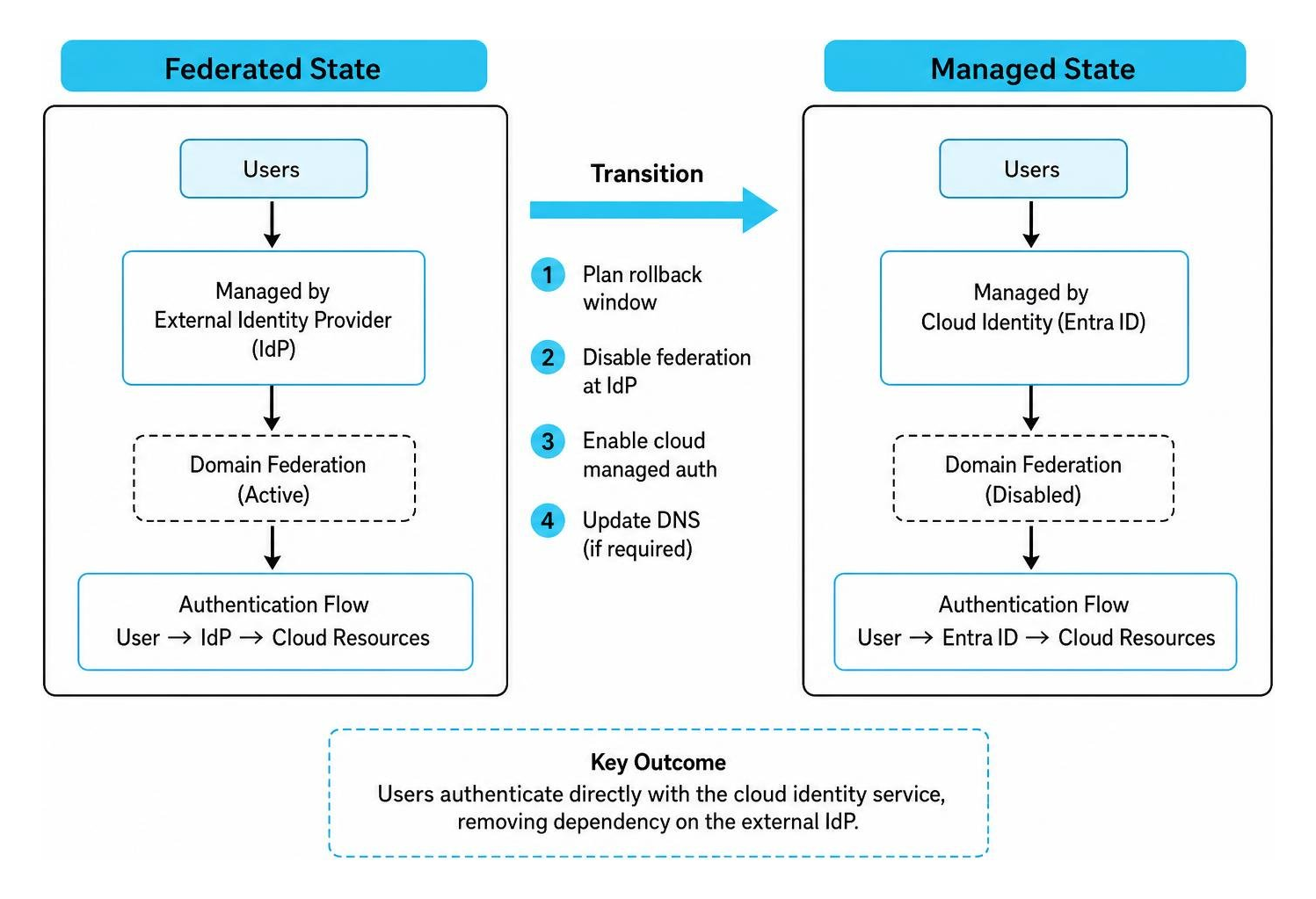
In complex hybrid environments, rolling back MFA might require reverting unified authentication policies or changing how your domain federates with external identity providers.
Reverting Unified Authentication Policies to Legacy SSPR
Microsoft's unified Authentication methods policy converges MFA and Self-Service Password Reset (SSPR) into a single management plane. However, if you must roll back to legacy policies due to compatibility issues or group-targeting limits (such as the 20 KB policy size limit in Entra ID), follow this sequence:
- Navigate to the Entra admin center and locate the Authentication methods blade.
- Change the migration state from Migration Complete back to Migration in Progress. Microsoft may prompt you for feedback during this step.
- Verify that your legacy SSPR and legacy MFA policies are active and configured to match your fallback requirements.
- Consolidate your targeted groups. If your unified policy targeted too many individual groups, you may have hit the 20 KB limit, preventing updates from saving. Consolidating these into a single security group resolves this bottleneck before you re-attempt migration.
Reverting Domain Federation to Managed Authentication
If you federated your Microsoft 365 domain to a third-party MFA provider (such as WatchGuard AuthPoint or AD FS) and the integration fails, you must quickly revert the domain back to a "Managed" state to restore native cloud login capability.
To perform this rollback safely, use Microsoft Graph PowerShell. First, connect to your tenant with the appropriate scopes:
Connect-MgGraph -Scopes "Domain.ReadWrite.All", "Directory.AccessAsUser.All"
Next, retrieve and back up your existing federation configuration so you can easily restore it later if needed:
$saml = Get-MgDomainFederationConfiguration -DomainId yourdomain.com
Once backed up, remove the federation configuration to revert the domain back to "Managed" status:
Remove-MgDomainFederationConfiguration -DomainId yourdomain.com -InternalDomainFederationId $saml.Id
Confirm the domain has reverted successfully by checking its authentication status:
Get-MgDomain -DomainId yourdomain.com
Ensure you execute this command using a cloud-only global administrator account ending in .onmicrosoft.com to prevent locking yourself out during the domain transition. For more detailed instructions on managing federated migrations, refer to the official Microsoft guide on how to migrate MFA server to MFA with federation.
Automating and Monitoring the Rollback Process
When executing a rollback, manual operations in the portal are slow and prone to human error. Automation ensures speed and accuracy, while real-time monitoring ensures you know exactly when the system returns to a stable state.
Scripting Phased MFA Rollback Procedures Enterprise Admins Can Automate
To automate policy changes safely, administrators should maintain pre-configured PowerShell scripts that utilize the Microsoft Graph API. Before making any modifications to your Conditional Access policies, export their current configurations to a local JSON file. This acts as an instant restore point.
You can script a phased rollback by targeting specific AD security groups. For example, if a pilot rollout of phishing-resistant MFA fails for your sales team, your script can dynamically remove that specific group from the enforcing Conditional Access policy while keeping other departments active. Always run your scripts with the -WhatIf parameter first to preview the changes and ensure no administrative accounts are inadvertently affected.
Real-Time Monitoring and Lockout Detection
Before initiating any rollback, ensure your monitoring infrastructure is active. This allows you to track the immediate impact of your policy changes:
- Azure Monitor Workbooks: Use the "Groups, Users and Sign-ins in Staged Rollout" workbook to track which users are hitting legacy vs. cloud authentication paths in real time.
- SIEM Integration: Stream your Entra ID sign-in and audit logs to an external SIEM. Monitor specifically for sign-in failure error codes (such as
500121for MFA authentication failures) and sudden spikes in helpdesk administrative overrides. - Session Tracking: Watch for session anomalies. A sudden drop in active sessions or an unexpected volume of new device registrations immediately following a rollback can indicate that an attacker is trying to exploit the temporary policy relaxation.
Post-Rollback Operations, Communication, and Re-Enforcement
A rollback is not a permanent solution; it is a temporary pause to allow for remediation. Managing the aftermath of a rollback is just as critical as executing the technical steps.
Managing Stakeholder and End-User Communications
An unexpected MFA rollback can cause massive confusion if not communicated properly. Users may wonder why they are suddenly no longer prompted for their authenticator app, or they may try to register new methods during a transition window, leading to corrupt registration data.
Coordinate closely with your service desk. Provide them with pre-approved runbooks detailing:
- The exact scope of the rollback (which groups or applications are affected).
- Clear instructions to stop registering new MFA devices until the rollback window closes.
- Templates for communicating with executives and end-users, explaining the operational pause and the timeline for re-enforcement.
Validating and Auditing MFA Rollback Procedures Enterprise Systems Require
Once the rollback is complete, you must validate that no residual policies are still silently blocking access.
- Session Revocation: Simply changing a policy does not instantly kick out active sessions due to token caching. You must explicitly revoke all active user sessions for affected accounts to force them to re-authenticate under the new, relaxed policy rules.
- Continuous Access Evaluation (CAE): Monitor CAE events to ensure that policy changes propagate quickly across Exchange Online and SharePoint Online.
- Audit Trail Verification: Review your Entra ID audit logs to confirm that only authorized administrators executed the rollback commands and that all changes conform to your internal change control ticket.
Frequently Asked Questions about Enterprise MFA Rollbacks
What is the risk of keeping MFA disabled after a rollback?
Keeping MFA disabled exposes your organization to immediate credential stuffing and brute-force attacks. Over 99.9% of compromised Microsoft accounts do not use MFA. If you must roll back, establish a strict, risk-mitigated timeline (typically no longer than 7 to 14 days) to address the root cause and re-enable enforcement.
How do we handle legacy RADIUS and NPS integrations during a rollback?
The Network Policy Server (NPS) extension for RADIUS does not support Entra ID Conditional Access policies; it enforces MFA on all incoming requests. If you must roll back MFA for RADIUS clients (like legacy VPNs), you must temporarily disable the NPS extension registry keys or route your VPN authentication through a non-MFA network path until the primary identity provider issues are resolved.
Can we roll back a migration from on-premises MFA Server to cloud MFA?
Yes. If you are using Staged Rollout, you can easily roll back by removing users from the designated Staged Rollout security groups, which instantly routes them back to your on-premises MFA Server. However, any authentication updates users made in the cloud during the co-existence phase will not sync back to your legacy PhoneFactor.pfdata database on-premises.
To review the exact migration utility parameters and safety boundaries, refer to the Microsoft Entra MFA Server Migration Utility documentation and the guide on migrating from MFA Server to Microsoft Entra MFA.
Conclusion
Executing an emergency MFA rollback is a high-stress operational event, but having structured, tested procedures ensures that your security posture doesn't collapse when a deployment hits a roadblock. By maintaining robust break-glass accounts, leveraging Conditional Access over blunt Security Defaults, and utilizing automated rollback scripts, enterprise teams can navigate authentication failures without losing control of their identity perimeter.
However, the high failure rates of traditional authenticator apps and the constant threat of session hijacking point to a larger architectural truth: traditional, high-friction MFA methods are increasingly difficult to manage at scale.
For organizations looking to eliminate the friction of authenticator apps and the risk of rollbacks entirely, physical, Bluetooth-based security keys represent the next evolution in identity defense. By moving to phishing-resistant, hardware-backed credentials, enterprises can achieve zero-trust compliance without overwhelming their helpdesk. To explore how to make this transition safely, read our comprehensive analysis on the best alternatives to Microsoft Authenticator for secure MFA solutions in 2026.