
Best Authenticator Apps of 2026
Ente Auth, 2FAS, and Aegis are the top authenticator apps of 2026. We tested Google Authenticator, Microsoft Authenticator, Authy alternatives, and more — ranked for security, backup, and cross-platform support.

Last updated: May 8, 2026
Introduction
Passwords alone are no longer enough. The best authenticator apps of 2026 are Aegis, Ente Auth, Microsoft Authenticator, Google Authenticator, 2FAS, and Duo Security. This guide ranks each by security, backup options, platform support, and enterprise readiness -- so you can choose the right app in under 5 minutes.
| Category | App | Why It Wins |
|---|---|---|
| Best overall (Android) | Aegis | Open-source, local storage, no phone number required, encrypted backups |
| Best overall (iOS) | Ente Auth | E2E encrypted, cross-platform (iOS, Android, macOS, Windows, Linux, web), fully open-source |
| Best for enterprise | Duo Security | SCIM/SSO integration, admin dashboard, risk-based MFA, Cisco-owned |
| Best for Microsoft | Microsoft Authenticator | Deep Entra ID integration, passwordless push notifications |
| Best free & simple | Google Authenticator | Google Account backup, wide app compatibility |
| Best for privacy | Ente Auth | End-to-end encrypted, fully open-source, cross-platform including desktop |
| Best hardware alternative | Everykey | Proximity-based, no app or phone required, enterprise-ready |
Recent improvements have made the online authenticator app easier to use, with enhanced user experience, updated visuals, and features that simplify the management of security codes. These improvements make authenticator apps accessible for everyday users and personal users who want simple, effective security without technical complexity. This article will highlight the key features that set the best authenticator apps apart, helping you choose the right solution for your needs. We’ll cover essential features such as secure cloud syncing, biometric lock, multi-device support, and offline code generation.
It’s crucial to use authenticator apps recommended by security experts or official sources, as untrusted or impersonated apps can put your accounts at risk. Additionally, sms codes are now considered less secure than authenticator apps due to vulnerabilities like interception and SIM swapping — this guide will explain why most experts recommend moving away from SMS-based 2FA.
Authenticator apps sit at the center of modern access strategies. They protect identities, secure multiple accounts, and work even when a device has no cellular connection. For organizations managing user access across browsers, devices, and cloud services, authenticator apps are now table stakes.
This guide looks at the best online authenticator app options in 2026, how they work, and what IT teams should consider when supporting two factor authentication at scale.
MFA Authenticator Apps Comparison
App / Platform | Platform | Free? | Backup | Enterprise? | Phishing-Resistant? | Best For |
|---|---|---|---|---|---|---|
Ente Auth | All platforms | Yes | E2E encrypted cloud | No | Yes | Best Authy replacement — works on iOS, Android, desktop with E2E encryption |
Duo Security | All platforms | Limited | Cloud | Yes | Yes | Enterprise MFA with admin controls |
Microsoft Auth. | iOS + Android | Yes | Microsoft cloud | Yes | Yes (Entra ID) | Microsoft and Azure environments |
Google Auth. | iOS + Android | Yes | Google account | No | Partial | Simplicity, widest app support |
Everykey | Hardware device | No | N/A | Yes | Yes (FIDO2 + proximity) | No-phone, proximity-based enterprise auth |
Summary of Key Differences
- Backup & Recovery: Authy and Microsoft Authenticator offer the most seamless cloud backup solutions. Google Authenticator recently added cloud sync, but it is tied to a Google Account. Aegis allows manual encrypted exports, giving you full control. Duo offers cloud restore tied to a user account.
- Multi-Platform: Authy is the only app in this list that offers native desktop apps (excluding browser extensions). The others are mobile-only.
- Security Philosophy: Aegis is fully open-source, allowing for security audits by the community. Google Authenticator keeps tokens primarily offline for maximum isolation.
- Ecosystem Integration: Microsoft Authenticator and Duo act as the client for broader enterprise identity management systems (conditional access, SSO), whereas Google Authenticator and Aegis strictly handle TOTP codes.
Why Use an Authenticator App for 2FA?

Using an authenticator app, such as Google Authenticator or Microsoft Authenticator, adds an extra layer of security to your online accounts by enabling two factor authentication. This means that even if someone guesses or steals your password, they still need a unique verification code generated by your authenticator app to gain access. With factor authentication, you’re protected by a second step that’s much harder for attackers to bypass. Authenticator apps generate secure, time-sensitive codes that are required in addition to your password, making your accounts significantly more secure and greatly improving overall account security. All the apps featured in this guide provide these core benefits, ensuring comprehensive protection and usability.
Offline Functionality
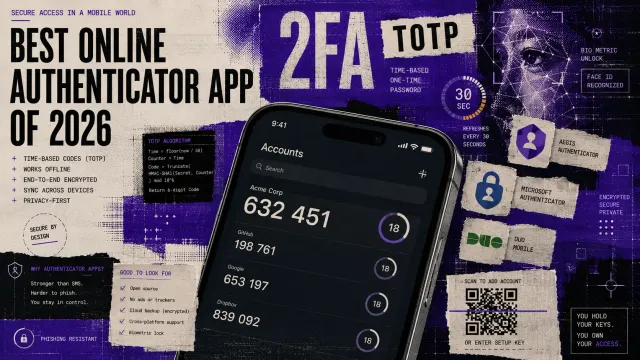
Most authenticator apps generate codes locally on your device, providing offline support and reducing reliance on network connectivity. Authenticator apps generate time-based, one-time passcodes (TOTP) that refresh every 30 seconds, making them difficult for attackers to use. In fact, most authenticator apps work offline because they generate codes using your device’s clock, making them more secure and private than SMS-based codes.
Security Advantages
By relying on an authenticator app for your online accounts, you reduce the risk of unauthorized access and protect your sensitive data with an extra layer of security that goes beyond traditional passwords.
Multi-Account Management
Many authenticator apps allow you to manage multiple accounts, making it easy to keep all your logins secure in one place. If you use more than one device, some apps let you sync your authenticator codes across devices, so you can access your accounts wherever you are.
Key Benefits of Using Authenticator Apps
- Adds a second layer of security beyond passwords
- Generates time-sensitive, one-time codes for each login
- Reduces risk of unauthorized access and data breaches
- Works offline, without requiring a cellular or internet connection
- Protects against phishing and SIM-swapping attacks
- Allows management of multiple accounts in one app
How to Set Up an Authenticator App
Getting started with an authenticator app is straightforward and only takes a few minutes.
Downloading the App
- Download your preferred authenticator app — such as Google Authenticator — onto your mobile device from official app stores like the Google Play Store or Apple App Store to ensure authenticity.
- The setup process for an authenticator app typically includes obtaining the application from verified sources and initializing it according to the manufacturer's specifications.
Setting Up Accounts
- Visit the website or service you want to secure and look for the option to enable two factor authentication in the security settings.
- You’ll typically be prompted to scan a QR code or enter a secret key into your authenticator app.
- Once set up, the app will begin generating unique verification codes for each of your accounts.
Syncing Across Devices
- Many authenticator apps allow you to manage multiple accounts, making it easy to keep all your logins secure in one place.
- If you use more than one device, some apps let you sync your authenticator codes across devices, so you can access your accounts wherever you are.
- For detailed setup instructions, visit the official website of your chosen authenticator app and follow their step-by-step guide.
How Do Authenticator Apps Work?
Authenticator apps are specialized software tools designed to enhance online security by generating time-based one-time passwords (TOTPs) or delivering push notifications for multi factor authentication (MFA) and two factor authentication (2FA). When you set up an authenticator app — such as Google Authenticator or Microsoft Authenticator — you typically scan a QR code provided by the online service you wish to secure. This QR code contains a unique secret key that is shared between your authenticator app and the service.
Once the secret key is stored, the authenticator app uses it in combination with the current time to generate a unique, time-sensitive code. This code changes every 30 seconds and must be entered alongside your password when logging in to your online account. Because the code is generated locally on your device and never transmitted over the internet, it is extremely difficult for attackers to intercept or predict.
Some authenticator apps, like Microsoft Authenticator, also support push notifications. With push-based authentication, you receive a prompt on your mobile device to approve or deny login attempts, streamlining the authentication process while maintaining strong security.
By requiring both something you know (your password) and something you have (the code or push notification from your authenticator app), these apps make it much harder for cybercriminals to compromise your accounts — even if your password is stolen. This layered approach to online security is why authenticator apps are now considered essential for protecting sensitive information and preventing unauthorized access.
Types of Authenticator Apps: Standalone, Cloud-Synced & Open Source
Authenticator apps come in several forms, each designed to meet different security needs and user preferences when protecting online accounts. At their core, all authenticator apps generate time-based one-time passwords (TOTPs) or deliver push notifications to verify your identity during login. However, the way they handle features like cloud sync, backup, and device support can vary significantly.
1. Standalone Authenticator Apps
These are the most common type, designed to generate authentication codes directly on your mobile device. Apps like Google Authenticator and Microsoft Authenticator fall into this category. They work offline, require no internet connection to generate codes, and are ideal for users who want a simple, reliable way to secure multiple online accounts without extra complexity.
2. Cloud-Synced Authenticator Apps
Some authenticator apps, such as Authy, offer encrypted cloud backup and multi-device sync, and users comparing Authy alternatives for secure two-factor authentication often evaluate how different apps handle backup, privacy, and recovery. This means your authentication codes can be securely accessed from more than one device, reducing the risk of losing access if your phone is lost or replaced. Cloud sync is especially useful for users who frequently switch devices or need access to codes on both mobile and desktop platforms.
3. Open Source Authenticator Apps
An open source authenticator app is ideal for users who prioritize transparency and user control. Open source authenticator apps are transparent, allowing anyone to audit the code, which appeals to privacy-focused users. Examples like Aegis, Ente Auth, 2FAS, and Bitwarden provide users with full control over their data and security settings, letting them manage backups and account recovery without relying on central servers. These apps often support advanced security protocols, encrypted backups, and optional cloud sync, giving users confidence that their data is handled securely and privately. In contrast, proprietary authenticator apps often offer smoother sync, better ecosystem integration, and consistent updates, but may collect more user data compared to open source apps, which typically prioritize user privacy and data minimalism. Proprietary authenticator apps are also often backed by large companies, providing additional resources for security and support.
4. Enterprise-Focused Authenticator Apps
Businesses and organizations often require additional features such as centralized management, integration with identity platforms, and support for personal and enterprise accounts. Microsoft Authenticator and Duo Mobile are popular choices in this space, offering push notifications for quick approvals, policy controls, and compatibility with a wide range of enterprise services.
5. Hardware-Based Authenticators
While not strictly apps, hardware security keys like YubiKey can also generate authentication codes or serve as a second factor. These devices offer the highest level of security by requiring physical presence for login, making them ideal for high-risk environments or users seeking maximum protection.
Each type of authenticator app brings unique strengths, whether you need simple offline functionality, secure cloud backup, open source transparency, or enterprise-grade features like push notifications and multi-device support. Choosing the best authenticator app depends on your specific needs, the types of online accounts you manage, and your preferred balance between convenience and security.
Best Authenticator Apps by Platform (iOS, Android, Windows)
Choosing the best authenticator app often depends on your device, ecosystem, and specific security needs. For Android devices, apps like Aegis Authenticator stand out by offering robust security features, encrypted backups, and full control over your authentication codes. These options are ideal for users who want advanced password management and the ability to export or restore codes securely.
Apple users benefit from apps such as 2Stable Authenticator, which provides seamless integration with iCloud for encrypted backups and multi device sync, ensuring your authentication codes are always accessible across your Apple devices. For those deeply invested in the Microsoft ecosystem, Microsoft Authenticator is a top choice. It not only supports passwordless authentication for Microsoft accounts and services but also offers push notifications, biometric authentication, and tight integration with enterprise accounts — making it a favorite among business and enterprise users.
Duo Mobile is another strong contender, especially for organizations that require centralized management and policy enforcement for personal and enterprise accounts. It supports multi device sync and is widely adopted in enterprise environments for its reliability and security protocols.
Some banking apps and financial institutions require their own proprietary authentication apps for 2FA, but these often lack the flexibility and universality of standard authenticator apps like Authy or Duo Mobile. When evaluating the best authenticator app for your needs, consider features such as encrypted backups, support for hardware security keys, biometric authentication, and integration with your preferred password manager for streamlined password management and authentication code generation.
For users handling highly sensitive information or seeking maximum security, hardware security keys — such as those from Yubico — can be used alongside or instead of software-based authenticator apps. These physical devices provide an extra layer of protection for online accounts, especially in enterprise settings.
Ultimately, the best authenticator app is the one that aligns with your platform, security requirements, and workflow — whether you prioritize open-source transparency, advanced backup options, or seamless integration with your existing password management tools and online accounts.
What to Look for in an Authenticator App
An online authenticator app is a mobile application that generates verification codes used during login. Two-factor authentication (2FA) adds an extra layer of security to online accounts by requiring a second step of verification when signing in, and robust two-factor verification practices help ensure those additional checks are both secure and usable.
Authenticator apps enhance security by generating time-sensitive, one-time passwords (TOTP) or push notifications for 2FA. Users have the ability to customize, organize, and manage their accounts and codes within the app, making it easier to utilize these features for improved security and usability. Authenticator apps generate one-time passwords (OTPs) that are used in addition to a username and password for account access.
Protection against phishing is enhanced because app-generated codes are local and harder to intercept than SMS-based verification. Stolen passwords alone are insufficient for unauthorized access due to frequently refreshing codes.
Authenticator apps work offline, reducing risks from phishing and SIM-swapping. Codes are generated locally on the device, requiring no internet or cellular connection to work.
Additionally, data generated by authenticator apps is encrypted in transit, which enhances security against potential threats.
Google Authenticator Review: Features, Pros & Cons
Setting Up Google Authenticator
To get started, users should visit http://www.google.com/2step to enable 2-Step Verification.
The Google Authenticator remains one of the most widely used authenticator apps in the world. It is simple, fast, and designed for users managing multiple accounts.
Google Authenticator is available for both iOS users and Android devices, and can be downloaded from their respective app stores.
To use Google Authenticator, users must enable 2-Step Verification on their Google Account. You can set up your Authenticator accounts automatically with a QR code. The Google Authenticator app supports multiple accounts for managing logins.
After setting up Google Authenticator, it is important to test the functionality by logging into each configured service before removing any existing authentication methods.
Google Authenticator can generate verification codes without a network or cellular connection. The codes generated by authenticator apps are time-based and typically expire every 30 seconds. Google Authenticator also supports counter-based code generation for certain services.
Managing Accounts and Codes
You can organize your Authenticator codes by dragging them to reorder. You can delete Authenticator codes by swiping right on any code to show the delete option. When you attempt to delete a code, you will be prompted to confirm before the code is permanently deleted. Once deleted, codes are removed from the device and cannot be recovered unless they have been backed up. You can edit your Authenticator codes by swiping left on any code to show the edit option.
Syncing and Privacy Features
When syncing codes across devices, your Authenticator codes are synced with your Google Account, allowing seamless access across all your devices. Some authenticator apps offer cloud storage options for securely backing up and exporting account tokens, making it easier to recover your data if you lose access to your device. Apps with encrypted cloud sync let you restore your codes on a new device with a password or account login, enhancing both convenience and security. Additionally, some authenticator apps offer browser extensions to streamline the login process by autofilling codes, providing extra convenience and security across devices.
Google Authenticator has a feature called Privacy Screen that requires a verification before accessing the app. You can turn on Privacy Screen in Google Authenticator for additional protection.
Authenticator apps are designed to manage multiple accounts across services, making them a convenient way to protect identity without switching devices or apps. Users can create new 2FA codes manually, such as by entering a setup key, or organize their accounts within the app. Many authenticator apps also include a search function, allowing users to quickly locate specific codes or accounts, which improves user experience and efficiency.
Multi-Account Management
Multi-account management enables a single app to secure multiple accounts across different services. Authenticator apps can manage multiple accounts, allowing users to access various services without switching apps.
Security Advantages
Using an authenticator app minimizes the need to share phone numbers with websites, reducing exposure to spam. Authenticator apps are often more secure than SMS-based two-factor authentication because codes are generated locally on the user’s device. In addition, backup codes play a critical role in account recovery if your authenticator app or device is lost or compromised. It's crucial to maintain separate backup codes for each service in a secure location, preferably offline or in an encrypted digital vault, to ensure you always have access to your accounts.
Biometric Integration
Biometric integration allows many apps to be secured behind device fingerprint or facial recognition. Many of the best authenticator apps now support biometric locks, such as fingerprint or facial recognition, to secure access to codes. In fact, all top-tier apps now mandate biometrics to view codes, preventing unauthorized physical access to devices. This keeps codes protected even if the phone itself is unlocked.
How 2FA Codes Are Generated and Verified
Authenticator apps generate one-time passwords (OTPs) that rotate frequently. Time-Based One-Time Passwords (TOTP) generate a new 6-8 digit code every 30-60 seconds that expires quickly. If a code expires, users can request a new one-time password to continue the authentication process.
This process is part of multi-factor authentication (MFA), which adds an additional layer of security beyond just passwords by requiring users to provide two or more verification factors.
Zero Trust security model relies on app-based 2FA as a first step to verify login attempts by a trusted device. This approach reduces reliance on network location and assumes access must be continuously confirmed.
Google Authenticator: Syncing, Backup & Device Transfer
Google Authenticator allows users to sync their codes across devices using a Google Account. Google Authenticator codes can be synchronized across all devices by signing in to your Google Account.
You can transfer accounts between devices using a QR code. This method lets you switch your authenticator codes to a new device easily. When setting up Google Authenticator, it is crucial to save a backup key or recovery codes in a secure place. If you never enabled backups or saved recovery codes, you may need to contact each service individually to regain access if you lose your device. To restore codes on another device, you will need the secret key or a backup, so it is important to securely save this information. You can use Google Authenticator without a Google Account, but syncing features will not be available.
Google Authenticator has a feature called Privacy Screen that requires a verification before accessing the app. You can turn on Privacy Screen in Google Authenticator for additional protection.
Setting Up 2FA with QR Codes
Authenticator apps can be set up quickly by scanning a QR code provided by the service requiring 2FA. You can set up your Authenticator accounts automatically with a QR code.
QR codes encode the secret key used for code generation. Once scanned, the app begins generating time-based codes immediately.
You can transfer accounts between devices using a QR code, which simplifies switching to a new device without manually re-entering secrets.
Are Authenticator Apps Safer Than SMS?
Authenticator codes are short-lived and predictable only to the app and the service verifying them. The codes generated by authenticator apps are time-based and typically expire every 30 seconds.
Authenticator apps are not vulnerable to SIM swapping or interception of codes via phone networks. Using an authenticator app is often more secure than SMS-based 2FA because the codes are generated locally on the user's device.
Authenticator apps do not require a network connection to generate codes, making them usable even offline.
Using Google Authenticator with Your Google Account
Google Authenticator is tightly integrated with Google services. To use Google Authenticator, users must enable 2-Step Verification on their Google Account.
Google Authenticator allows users to sync their codes across devices using a Google Account. This is useful for recovery but should be balanced with organizational policies around account access and backup.
Hardware Security Keys vs. Authenticator Apps
Factor authentication)) strengthens access by requiring proof from more than one category. Authenticator apps are a practical way to add a second factor without relying on SMS or email.
A hardware key refers to a physical security device, such as a YubiKey, that is used as a second factor for authentication. For maximum security, some apps like Yubico Authenticator require a physical security key to generate a code. This approach reduces attack surface further by tying authentication to hardware.
How One-Time Passwords (OTP) Protect Your Accounts
One time passwords are generated for a single login session and then expire. Time-Based One-Time Passwords (TOTP) generate a new 6-8 digit code every 30-60 seconds that expires quickly.
Microsoft Authenticator Review: Features, Pros & Cons
Microsoft Authenticator is widely used in business environments. Users can connect their online accounts to the Microsoft Authenticator app to establish a secure link for authentication. Microsoft Authenticator provides a passwordless sign-in option for Microsoft accounts and is tightly integrated with Microsoft services and the broader Microsoft ecosystem, including Microsoft 365, Azure AD, and Entra ID.
Microsoft Authenticator is designed for both personal and enterprise users, enhancing security for various user types. For enterprise users, it features push notifications and number matching, supporting scalability, admin controls, and compliance reporting. Microsoft Authenticator integrates seamlessly with Microsoft accounts, making it ideal for users in the Microsoft ecosystem. Push notifications allow instant approval of login attempts via a simple notification tap.
Another enterprise-focused solution is the LastPass Authenticator, which is integrated with the LastPass password management system. It offers features like push notifications, biometric authentication, and policy control for team-based environments, making it a strong choice for organizations seeking an all-in-one access management platform.
This makes Microsoft Authenticator especially attractive for enterprises standardizing on Microsoft identity platforms.
Privacy Screen and Biometric Lock Features
Privacy Screen adds an extra safeguard. Google Authenticator has a feature called Privacy Screen that requires a verification before accessing the app.
This prevents someone from viewing codes if they briefly access a user’s phone, reinforcing access control at the device level.
Best Authenticator Apps for Enterprise and Business
In enterprise settings, authenticator apps are part of broader identity strategies. Password management and centralized control are key features for enterprise users, enabling secure, encrypted storage of credentials and streamlined access policy enforcement, especially when combined with Single Sign-On best practices to simplify secure access across many applications. They reduce reliance on passwords, lower help desk burden, and improve resilience against phishing. Duo Mobile, for example, is designed for enterprise environments, providing centralized control and policy enforcement for teams.
Authenticator App Security Best Practices
Keeping Your App Updated
- Always keep your authenticator app updated to benefit from the latest security features and bug fixes.
Backing Up Codes
- When setting up new accounts, securely save your secret key or a backup QR code in a safe location — this will make it easier to restore your authenticator codes if you ever lose access to your device.
- Some authenticator apps offer an encrypted vault for storing backup codes and secrets securely, ensuring only you have access to your sensitive data.
- Encrypted sync features allow you to securely synchronize your codes across multiple devices while maintaining privacy and control. For example, Aegis Authenticator provides full control over backup files through encrypted exports.
Using Biometric Authentication
- Consider enabling a privacy screen or biometric authentication, such as fingerprint or facial recognition, to add an extra layer of security to your app and prevent unauthorized access to your codes.
- Use strong, unique passwords for each of your accounts, and consider using a password manager to keep track of them; modern password managers with encrypted vaults and breach monitoring can significantly strengthen your overall security posture.
By following these steps, you’ll ensure your authenticator app remains a secure and reliable tool for protecting your online accounts.
Troubleshooting Common Issues
Time Sync Issues
If you run into trouble with your authenticator app, there are several steps you can take to resolve common issues. First, make sure your device’s clock is set correctly, as time discrepancies can cause verification codes to be rejected.
QR Code Scanning Problems
If you’re having difficulty scanning a QR code, try cleaning your camera lens, improving lighting, or restarting the app.
Account Recovery
Should you lose access to your authenticator codes, check if you have a secure backup or saved secret key to restore your codes on a new device. Secure backup options are crucial for account recovery, as they allow you to restore your 2FA codes in case of device loss or data corruption without compromising security. After adding accounts to an authenticator app, it is essential to configure backup options immediately to maintain access to your accounts if your device is lost or damaged. If you do not have a backup, contact the support team of the service you’re trying to access for help with account recovery. For persistent issues, consult the support website for your authenticator app or reach out to their customer service for further assistance. Keeping backups and knowing where to find help can make resolving authenticator app problems much easier.
Authenticator App Alternatives: Passkeys, Hardware Keys & More
Top online authenticator apps include:
- Google Authenticator — Google Authenticator is a simple, widely used app that generates time-based one-time codes for secure account login without requiring an internet connection.
- Microsoft Authenticator — Microsoft Authenticator offers one-time passcodes along with push-based approvals and integrates seamlessly with Microsoft accounts and enterprise environments.
- 2FAS — 2FAS is a privacy-focused authenticator that supports secure backups and an easy-to-use interface for managing multiple accounts.
- Authy — Authy is known for its encrypted cloud backup system that allows users to access codes across multiple devices.
- EveryKey — EveryKey is a proximity-based authenticator that verifies identity automatically when a user’s phone is nearby, enabling seamless access without relying solely on one-time codes.
- Verifyr — Verifyr is a free alternative to Google Authenticator and Microsoft Authenticator, allowing users to add multiple accounts with a strong focus on privacy and secure backups.
Security Risks and Limitations of Authenticator Apps
When choosing the best authenticator app for your online accounts, security should always be your top priority. The right authenticator app not only generates codes for two factor or multi factor authentication but also ensures that your sensitive information is protected at every step.
A key security feature to look for is the method used to generate authentication codes. Leading apps like Microsoft Authenticator and Google Authenticator use secure, time-based one-time passwords (TOTP) or push-based authentication, making it much harder for attackers to gain unauthorized access to your accounts — even if your password is compromised. For Microsoft accounts and other major online services, these methods provide a robust second layer of defense.
Backup and recovery options are equally important. The best authenticator app will offer secure ways to save backup codes, whether through encrypted cloud backup, local storage, or an encrypted vault. This ensures you can regain access to your online accounts if your device is lost or replaced. Apps like LastPass Authenticator provide encrypted cloud storage and backup key options, so you never have to worry about losing your authentication codes.
Multi factor authentication (MFA) is now a must-have for account security. By requiring more than one form of verification — such as a password, biometric authentication, and a one-time code — multi-factor authenticationdramatically reduces the risk of data breaches. Duo Mobile, for example, supports push notifications and advanced security protocols, making it a strong choice for both personal and enterprise users.
User control is another critical consideration. Open source authenticator apps like Ente Auth give you full control over your authentication codes and security settings, allowing you to manage encrypted sync, offline functionality, and backup options without relying on a third party. This transparency is especially valuable for users who want to ensure their data is handled securely and privately.
For enterprise users, multi device support and secure backup keys are essential. Microsoft Authenticator stands out with its encrypted cloud backup and seamless integration across multiple devices, making it ideal for managing enterprise accounts and supporting hybrid or remote workforces.
Customization is also important. The best authenticator app should let you tailor security settings to your needs, with options for biometric locks, push notifications, and QR code scanning for easy setup. Apple users may want to look for apps that support Apple Watch, providing quick access to authentication codes right from their wrist.
Finally, if you use banking apps, be aware that some may require their own built-in authenticator. While these may offer fewer customization options, they still provide stronger protection than SMS codes and help safeguard your financial information.
By carefully considering these security factors — secure code generation, encrypted cloud backup, multi factor authentication, user control, enterprise features, and platform-specific options — you can choose the best authenticator app to protect your online security and keep your accounts safe from data breaches and cyber threats.
The Future of 2FA: Passkeys, Biometrics & Beyond
The future of authenticator apps promises even greater security and convenience for users protecting their online accounts. Looking ahead, end to end encryption and zero knowledge encryption are likely to become standard features, ensuring that sensitive data remains private and secure. Encrypted cloud sync will ensure that backups cannot be read by the service provider, further protecting user information. For example, Sentinel Authenticator features zero-knowledge architecture and military-grade encryption, meaning the developer cannot see user codes or data, which greatly enhances privacy.
As technology advances, expect to see more apps integrating biometric authentication — like facial recognition or fingerprint scanning — for an added layer of identity verification. Artificial intelligence and machine learning may soon help detect suspicious login attempts or phishing attacks, providing smarter protection for your accounts. Authenticator apps are also likely to support new types of verification codes, such as those based on user behavior or location, making access both more secure and more convenient. As online threats continue to evolve, authenticator apps will remain a critical tool for safeguarding your accounts and personal data. Staying informed about new features and best practices will help ensure your online security keeps pace with the latest developments.
Final Verdict: Which Authenticator App Should You Use?
In 2026, the online authenticator app is no longer optional. It is one of the most reliable ways to protect online accounts, reduce phishing risk, and support modern access models.
Authenticator apps work offline, generate time-based codes locally, and scale across multiple accounts with minimal friction. Whether supporting individual users or enterprise identity strategies, they form a critical layer in secure access.
As cyber threats continue to evolve, the importance of using an authenticator app cannot be overstated. These apps not only safeguard your login security by requiring a second factor beyond just a password but also help mitigate risks associated with data breaches and credential theft. The convenience of features like encrypted backups, multi-device sync, and biometric authentication enhances both security and usability, making it easier for users to adopt strong security practices.
Additionally, many authenticator apps now offer integration with hardware security keys and password managers, creating a comprehensive security ecosystem. For Apple users, the availability of an apple watch app adds another layer of convenience, allowing quick access to authentication codes without needing to pull out a mobile device. Android-only apps provide specialized features tailored for that platform, ensuring users have options that fit their preferences and devices.
Importantly, authenticator apps do not rely on internet access to generate authentication codes, which means they remain functional even in offline scenarios, such as during travel or in areas with limited connectivity. This offline functionality, combined with robust security protocols, ensures continuous protection without compromising accessibility.
For organizations and personal users alike, adopting the best authenticator app 2026 is a proactive step toward enhancing online security. By saving backup codes securely and following recommended security protocols, users can prevent lockouts and maintain seamless access to their online accounts. Ultimately, authenticator apps are an essential tool in the ongoing effort to protect digital identities in an increasingly connected world.
Authenticator App FAQ
What is an online authenticator app?
An authenticator app generates one-time verification codes used alongside a password to secure account access.
Are authenticator apps safer than SMS?
Yes. Authenticator apps are often more secure than SMS-based two-factor authentication because codes are generated locally on the user's device.
Do authenticator apps work without internet?
Yes. Authenticator apps do not require a network connection to generate codes.
Can I manage multiple accounts in one app?
Yes. Authenticator apps can manage multiple accounts, allowing users to access various services without switching apps.
What happens if I lose my phone?
Many authenticator apps support secure cloud backups or QR-based transfers to restore access on a new device.