

How to Implement Form-Based Authentication in SharePoint
Form-based authentication in SharePoint authenticates users against SQL — not Active Directory. Full config walkthrough, security tradeoffs, and troubleshooting for FBA deployments.

What Is Form Based Authentication in SharePoint (and How to Set It Up)
Form based authentication in SharePoint lets you authenticate users against a custom SQL membership database instead of Active Directory — making it the go-to choice for extranets, partner portals, and any scenario where your users don't have Windows accounts.
Here's the short version of how to implement it:
- Create the membership database using
aspnet_regsql.exeand grant your SharePoint app pool accountdb_ownerpermissions - Edit three web.config files — the FBA web application, Central Administration, and the Security Token Service (STS)
- Configure the web application in Central Administration under Authentication Providers, entering your membership and role provider names
- Add users and roles via SQL queries or a management tool like the FBA Pack
- Test login and optionally deploy a custom login page
That covers the core flow. The sections below go deeper on each step.
SharePoint's built-in authentication defaults to Windows/Active Directory. That works well inside a corporate network — but it breaks down the moment you need to give access to external contractors, customers, or partners who don't live in your domain.
FBA solves this by plugging in ASP.NET's membership and role provider system. SharePoint hands off credential validation to a SQL database you control, then wraps the result in a claims token through its Security Token Service. The user gets a standard SharePoint session; SharePoint never needs to know about Active Directory.
One important distinction: since SharePoint 2010, FBA users are treated as claims users under the hood — not classic forms users. That means you can't use the standard FormsAuthentication class in custom code. You have to use SharePoint's own claims classes like SPClaimsUtility and SPFederationAuthenticationModule. More on that in the custom login page section below.
The configuration process is essentially identical across SharePoint 2013, 2016, 2019, and Subscription Edition — the same three web.config edits, the same database setup, the same Central Administration steps.
Understanding Form Based Authentication in SharePoint
To understand how form based authentication in SharePoint operates, it helps to contrast it with classic Windows authentication and other claims-based mechanisms.
Historically, older versions of SharePoint relied on classic-mode authentication, where IIS directly handled Windows credentials. Since SharePoint 2010, claims-based identity became the default architecture. In a claims-based environment, SharePoint does not directly authenticate the user; instead, it relies on a Security Token Service (STS) to validate credentials and issue a trusted identity token containing a set of "claims" such as the user's name, email address, and roles.
FBA in SharePoint is a specific type of claims-based authentication. It uses the standard ASP.NET Membership Provider and Role Manager infrastructure to validate credentials against an external store, typically a SQL Server database, though LDAP can also be used.
| Feature | Windows Authentication | Claims-Based Authentication (SAML/OIDC) | Forms-Based Authentication (FBA) |
|---|---|---|---|
| Credential Store | Active Directory / Local Windows Accounts | External identity provider or federation service | SQL Server (aspnetdb) or LDAP Directory |
| User Experience | Seamless SSO (Kerberos/NTLM) | Redirect to external IdP login page | Custom inline HTML login form |
| Token Type | Windows Security Token | SAML Assertion or JWT Token | Claims Token generated by SharePoint STS |
| Best Used For | Internal employees on domain-joined devices | Enterprise SaaS integration, federated partners | External partners, vendors, customer portals |
When a user attempts to log in via FBA, the following sequence occurs:
- The user enters their credentials into a web form.
- The SharePoint web application calls the configured ASP.NET Membership Provider's
ValidateUsermethod. - The Membership Provider queries the SQL database. If the credentials are valid, it returns
true. - The SharePoint Security Token Service (STS) intercepts this confirmation, packages the username and any associated group memberships retrieved via the ASP.NET Role Manager into a claims token, and writes a federated authentication cookie (
FedAuth). - The user is redirected back to the site with an active claims session.
For a deeper dive into the underlying mechanics of web-based forms, you can read our guide on Forms Based Authentication Explained. To explore how Microsoft structures identity across its collaboration suite, refer to the official documentation on Authentication, authorization, and security in SharePoint.
Step-by-Step Guide to Configure FBA in SharePoint
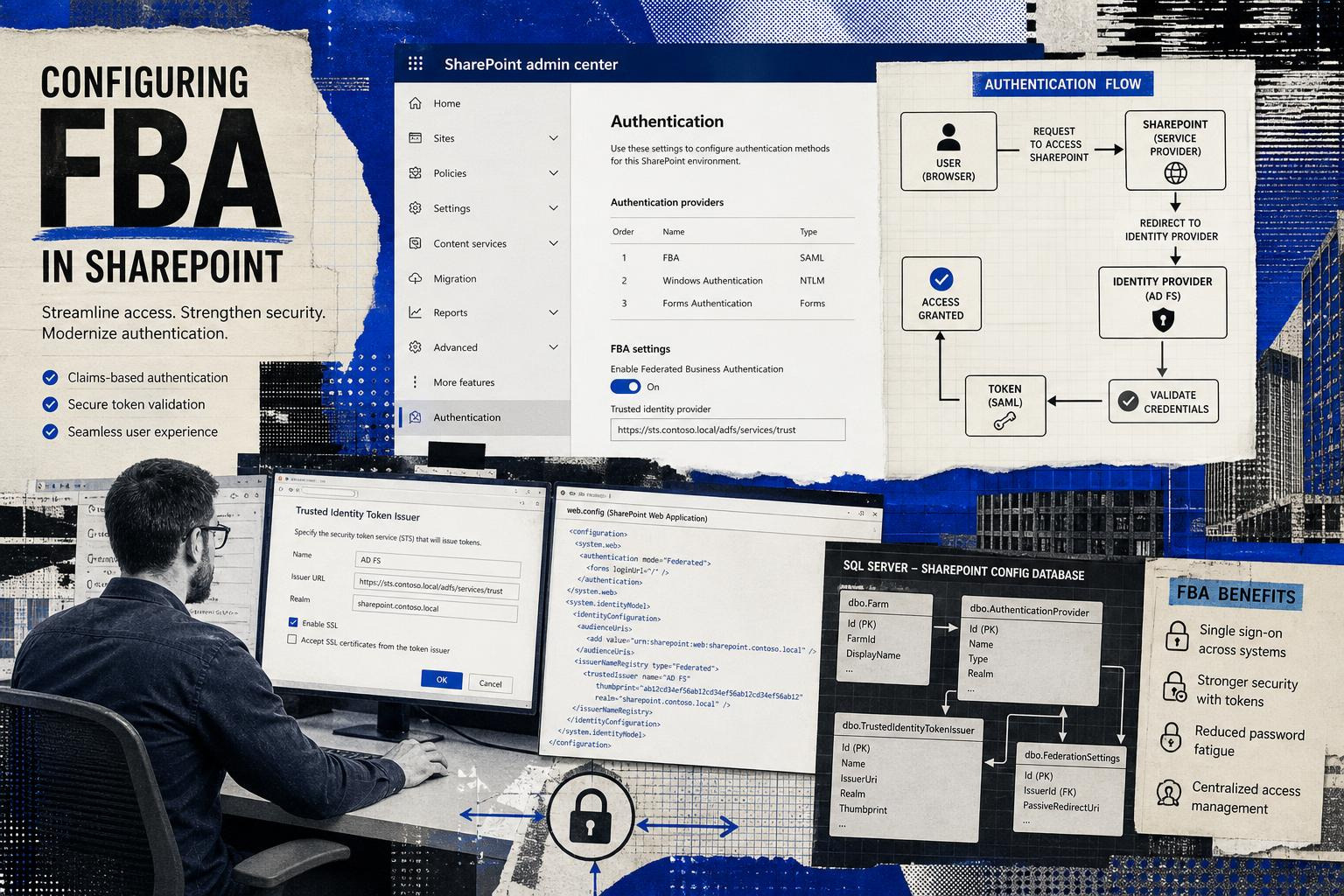
Implementing FBA requires a precise sequence of configurations across your database server, file system, and SharePoint Central Administration. Missing a single entry in any of the configuration files will result in authentication failures or broken People Pickers.
Step 1: Creating and Preparing the Membership Database
The foundation of an FBA setup is the SQL Server database that houses user credentials, roles, and profile information. ASP.NET includes a command-line utility called aspnet_regsql.exe specifically designed to provision this schema.
- Log onto your SQL database server or a machine with the .NET Framework installed.
- The ASP.NET SQL Server Setup Wizard will launch. Click Next, choose Configure SQL Server for application services, and click Next again.
- Enter the name of your SQL Server instance. Choose Windows Authentication for the connection, and leave the database name as the default
aspnetdb(or specify a custom name likeSharePoint_FBA_DB). Click Next to provision the tables, stored procedures, and roles.
Run the registration tool:
aspnet_regsql.exe
Open an elevated Command Prompt and navigate to the 64-bit .NET Framework directory:
cd C:\Windows\Microsoft.NET\Framework64\v4.0.30319
Once the database is created, you must grant the correct permissions. SharePoint's web applications and service engines run under specific service accounts (Application Pool identities). If these accounts cannot query the database, users will experience "Membership Provider not configured" errors.
Open SQL Server Management Studio (SSMS), navigate to Security > Logins, and ensure the following accounts are mapped to your FBA database with the db_owner role:
- The Application Pool account of your SharePoint Web Application.
- The Application Pool account of the SharePoint Central Administration site.
- The Security Token Service (STS) Application Pool account (often running as the SharePoint Farm Account).
For detailed database provisioning nuances across modern versions of SharePoint, review Chris Coulson's guide on Configuring Forms Based Authentication in SharePoint 2016, SharePoint 2019 and SharePoint Subscription Edition – Part 1 – Creating the Membership Database.
Step 2: Editing the Web.config Files for Form Based Authentication in SharePoint
To allow SharePoint to communicate with your new database, you must register the connection string, membership provider, and role manager in three separate web.config files across all Web Front End (WFE) servers in your farm:
- Central Administration web.config: Allows the People Picker to resolve FBA users and roles when assigning permissions.
- Security Token Service (STS) web.config: Allows the STS to validate credentials and generate tokens.
- FBA Web Application web.config: Allows the web application itself to host the login controls and process requests.
Connection String
Add your connection string inside the <configuration> block (directly under the root node) in all three files. Ensure the database name and SQL Server instance match your environment:
<connectionStrings>
  <add name="FBADBConnectionString" connectionString="Data Source=SQL-PROD-01;Initial Catalog=aspnetdb;Integrated Security=True;" />
</connectionStrings>
Membership and Role Provider Configurations
Next, define the providers. In the Central Administration and STS web.config files, add these configurations inside the <system.web> block.
Note: For the FBA Web Application's web.config, you must ensure that your custom provider is set as the default, whereas in Central Administration, you keep the default Windows providers active and append your custom providers to the list.
<membership>
  <providers>
 <clear />
 <add name="FBAMembershipProvider"
 type="System.Web.Security.SqlMembershipProvider, System.Web, Version=4.0.0.0, Culture=neutral, PublicKeyToken=b03f5f7f11d50a3a"
 connectionStringName="FBADBConnectionString"
 enablePasswordRetrieval="false"
 enablePasswordReset="true"
 requiresQuestionAndAnswer="false"
 applicationName="/"
 requiresUniqueEmail="true"
 passwordFormat="Hashed" />
  </providers>
</membership>

<roleManager enabled="true">
  <providers>
 <clear />
 <add name="FBARoleProvider"
 type="System.Web.Security.SqlRoleProvider, System.Web, Version=4.0.0.0, Culture=neutral, PublicKeyToken=b03f5f7f11d50a3a"
 connectionStringName="FBADBConnectionString"
 applicationName="/" />
  </providers>
</roleManager>
Make sure that the applicationName attribute matches exactly across all files. This attribute segments users within the aspnetdb database; if they do not match, users created in one application will be invisible to another. For historical context on configuring these providers, refer to this classic walkthrough on How to Configure Form Based Authentication (FBA) in SharePoint 2010.
Step 3: Configuring the Web Application in Central Administration
With the database ready and configuration files modified, you can enable FBA on your target web application.
- Open SharePoint Central Administration.
- Navigate to Application Management > Manage Web Applications.
- Select your web application, then click Authentication Providers in the ribbon.
- Select the zone you want to configure (e.g., Default or Intranet).
- In the Edit Authentication dialog:
- Check Enable Claims Authentication.
- Check Enable Forms Based Authentication (FBA).
- Enter your custom Membership Provider Name (e.g.,
FBAMembershipProvider). - Enter your custom Role Manager Name (e.g.,
FBARoleProvider). - Keep Enable Windows Authentication checked if you want to allow dual-mode authentication (highly recommended so administrators can still log in seamlessly via NTLM/Kerberos).
- Click Save.
[Default Zone]  --> Windows Auth (Internal Staff & Search Crawler)
[Extended Zone] --> Forms-Based Auth (External Partners / Vendors)
If you expose your site to external users, it is standard practice to use an Extended Zone. By keeping Windows Authentication on the Default Zone, you ensure that SharePoint's search crawler can index site content without hindrance, while external users access the site via an HTTPS-secured Extended Zone running FBA.
For complete design architectures involving zones, refer to our Form Based Authentication Guide 2026.
Managing Users, Roles, and Custom Login Pages
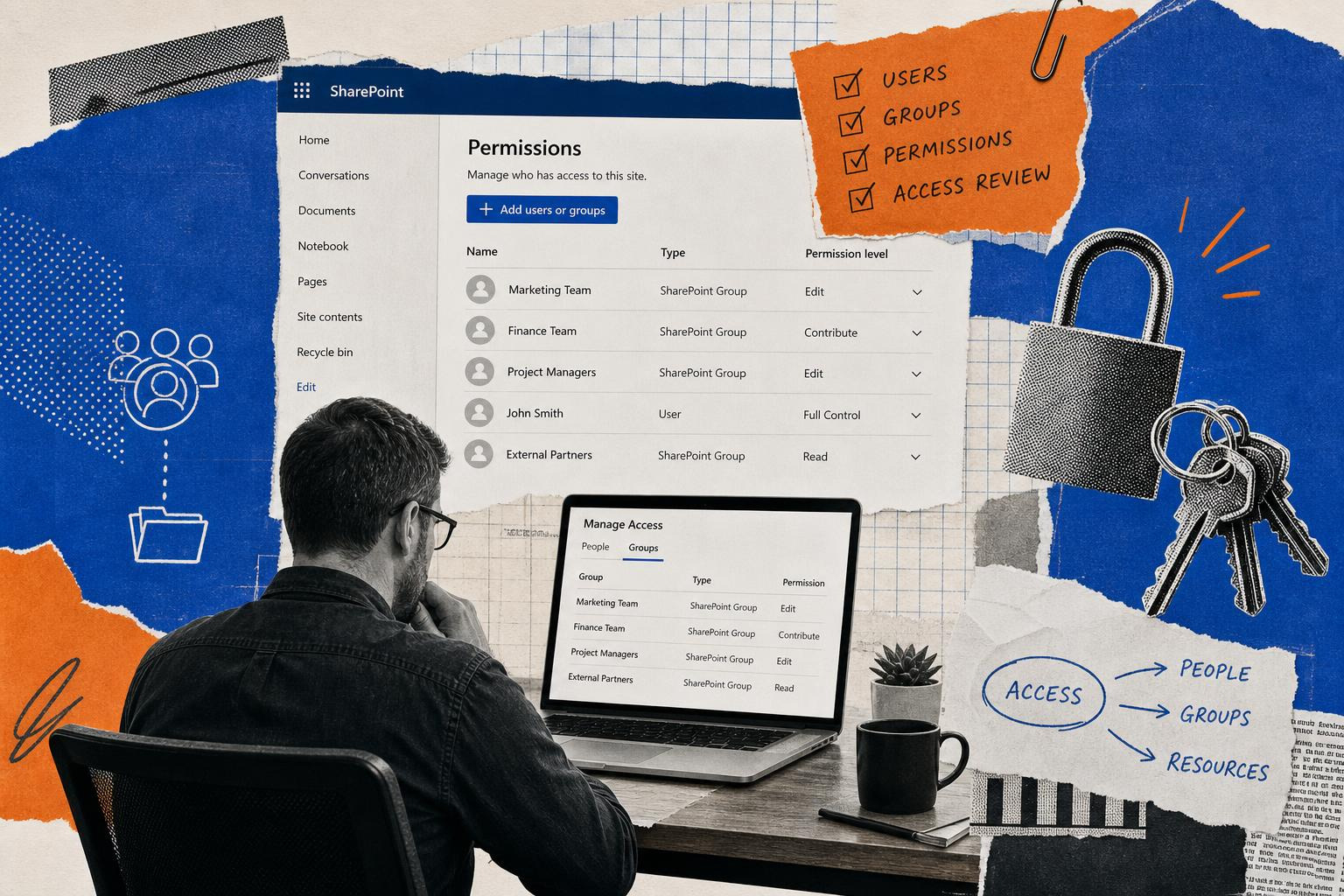
Once FBA is configured, you must manage your users and roles. Because FBA users do not exist in Active Directory, standard AD management tools will not work.
User and Role Provisioning
You have three primary options for managing FBA accounts:
- The SharePoint FBA Pack: A widely used open-source solution that deploys directly into your SharePoint farm. It provides custom SharePoint application pages within Site Settings, allowing administrators to create, edit, unlock, and delete users, reset passwords, and manage roles directly from the browser.
- Direct SQL Queries: For automated provisioning, you can call ASP.NET's built-in stored procedures directly within the
aspnetdbdatabase. For example, to create a user programmatically:EXEC dbo.aspnetMembershipCreateUser
@ApplicationName = '/',
@UserName = 'external_user',
@Password = 'SecureP@ss123!',
@Email = 'user@example.com',
... - Custom Management Portals: A bespoke administrative web portal built on the .NET Membership API.
Once users and roles are created, they can be searched using the SharePoint People Picker. In Central Administration, you can grant permissions to an entire FBA role (which SharePoint treats as a domain group) or to individual FBA claims-based accounts.
Creating a Custom Login Page for Form Based Authentication in SharePoint
While SharePoint provides a default login page, it is visually basic and lacks custom branding, password recovery options, or terms-of-service agreements. To build a custom login page, you must create a farm solution in Visual Studio that inherits from SharePoint's claims infrastructure rather than the generic ASP.NET login controls.
Because SharePoint uses claims-based identity, standard FormsAuthentication classes will not properly establish a SharePoint session. Instead, you must leverage the SPClaimsUtility and SPFederationAuthenticationModule classes.
Below is a simplified example of the code-behind for a custom login button click event:
using System;
using Microsoft.SharePoint;
using Microsoft.SharePoint.IdentityModel;
using System.Web.IdentityModel;

protected void btnLogin_Click(object sender, EventArgs e)
{
 string username = txtUsername.Text.Trim();
 string password = txtPassword.Text;

 // Validate credentials against the configured membership provider
 bool isValid = SPClaimsUtility.AuthenticateFormsUser(
 new Uri(SPContext.Current.Web.Url),
 username,
 password
 );

 if (isValid)
 {
 // Redirect the user back to their original destination
 string sourceUrl = Request.QueryString["Source"];
 if (!string.IsNullOrEmpty(sourceUrl))
 {
 Response.Redirect(sourceUrl);
 }
 else
 {
 Response.Redirect(SPContext.Current.Web.Url);
 }
 }
 else
 {
 lblError.Text = "Invalid username or password.";
 }
}
For step-by-step guidance on creating, packaging, and deploying this custom page as a farm solution, consult the technical walkthroughs on Creating and Deploying a Custom Login Page for SharePoint 2010 Forms Based Authentication and Writing A Custom Forms Login Page for SharePoint 2010 Part 1.
Security Best Practices and Modern Authentication Alternatives
While FBA is highly functional, it is built on legacy ASP.NET technologies. If you must deploy or maintain FBA, apply the following security controls:
- Password Security: Never use plain-text or reversible encrypted passwords. Always set the
passwordFormatattribute toHashedin your provider configurations. Hashing uses a one-way cryptographic function combined with a unique salt value to reduce the impact of database exposure. For security teams, this maps directly to credential storage expectations in frameworks such as NIST SP 800-63B and CIS Controls guidance around account and credential management. - Synchronized Machine Keys: If your SharePoint farm has multiple Web Front Ends (WFEs) or sits behind a load balancer, configure a static, identical
<machineKey>within the<system.web>section of all relevantweb.configfiles across all servers. If left to auto-generate, different servers can use different validation and decryption keys, resulting in session validation failures and random logouts as users hit different WFEs. - Patching and Vulnerability Management: On-premises SharePoint installations remain high-value targets for attackers. For instance, CVE-2023-29357, a critical vulnerability enabling remote attackers to bypass authentication by spoofing JSON Web Tokens (JWT), demonstrated how weaknesses in claims processing can compromise an entire farm. Keeping servers patched with the latest Cumulative Updates (CUs) is non-negotiable.
- Legacy Protocol Exposure: Avoid exposing old authentication and document access paths unless the business requirement is explicit and compensating controls are in place. Legacy authentication paths are commonly targeted for credential harvesting, brute-force attempts, and replay attacks because they often lack modern controls such as phishing-resistant MFA, device posture checks, and conditional access.
For modern deployments, organizations should consider migrating from FBA to standards-based authentication such as SAML 2.0 or OpenID Connect (OIDC) integrated with a central identity provider or federation service. This transition enables stronger security controls, including multi-factor authentication, passwordless sign-in, certificate-based authentication, risk-based access policies, and centralized logging for security operations.
To map out your organization's transition to modern identity patterns, explore our Modern Authentication Explained Why Secure Identity Is The Backbone Of Zero Trust guide and review our Authentication Cheat Sheet Modern Security Strategies For It Pros.
Troubleshooting Form Based Authentication in SharePoint
When configuring FBA, small errors can lead to disruptive system behaviors. Here are the most common issues and how to resolve them:
1. The IIS Application Pool Crashes or Stops Automatically
- Symptom: Shortly after enabling FBA or modifying configuration files, accessing the site results in a
503 Service Unavailableerror, and the IIS Application Pool stops. - Cause: This is almost always caused by a syntax error or a missing element in one of your modified
web.configfiles. - Resolution: Validate your XML files using an XML validator. Ensure all tags are correctly closed, attribute names are spelled correctly, and there are no duplicate
<connectionStrings>or<membership>sections.
2. "Membership Provider not configured correctly" or Login Failures
- Symptom: The login page loads, but entering valid credentials yields an error stating that the membership provider is not configured.
- Cause: The SharePoint security token service or the web application cannot connect to the SQL database, or the application names do not match.
- Resolution:
- Verify that the SQL Server allows remote connections.
- Verify that the SQL connection string is identical in all three
web.configfiles. - Ensure that the SharePoint App Pool accounts have been explicitly granted
db_ownerpermissions on the FBA SQL database. - Verify that the
applicationName="/"attribute is identical in all membership and role provider configurations.
3. Correlation IDs and ULS Logs
If you encounter a generic error page with a Correlation ID, open the SharePoint Unified Logging Service (ULS) logs on your WFE servers using a tool like ULS Viewer. Search for the specific Correlation ID to locate the exact stack trace. Common root causes found in ULS logs include:
- Access Denied to Database: Confirms SQL permission issues.
- Could not load type 'System.Web.Security.SqlMembershipProvider': Indicates a typo in the provider definition in
web.config.
4. Office Client Authentication Issues (Modern Auth Conflicts)
- Symptom: FBA users can log in via their web browser, but when they try to open an Office document (Word, Excel) directly from SharePoint, they are repeatedly prompted for credentials, or the connection fails.
- Cause: Modern Office clients default to using Modern Authentication, which does not natively support claims-based FBA sign-in dialogs.
- Resolution: You can disable Modern Authentication for Office client connections to force them to fall back to the FBA login interface. Run the following SharePoint PowerShell command:
$app = Get-SPWebApplication "https://yoursharepointsite.com"
$app.SuppressModernAuthForWebClients = $true
$app.Update()
Frequently Asked Questions
Can I use FBA with SharePoint Online?
Technically, no. SharePoint Online does not support custom ASP.NET SQL membership providers because you do not have access to the underlying IIS web.config files or the hosting infrastructure.
However, when you inspect claims tokens in SharePoint Online, you may see a claims format such as i:0#.f|membership|username@domain.com. The f in this token indicates a forms-style claim, but it does not mean you can configure a custom SQL Membership Provider as you would in an on-premises SharePoint farm. Authentication is handled by Microsoft's cloud identity layer and then represented to SharePoint as claims. For external access in SharePoint Online, use the platform's built-in guest and external collaboration controls rather than trying to replicate on-premises FBA.
Why does Office 2016/2019 fail to authenticate with FBA?
Office 2016, 2019, and Microsoft 365 Apps use Modern Authentication flows by default. When an Office client attempts to open a file from an on-premises SharePoint site running FBA, it expects a modern identity provider response rather than an ASP.NET forms redirect. To resolve this, you must either configure your SharePoint web application to suppress Modern Authentication for client applications, forcing a fallback to the legacy forms authentication dialog, or transition your farm to a standards-based claims provider such as SAML or OIDC.
How do I migrate FBA configurations between SharePoint versions?
When migrating from older versions of SharePoint such as SharePoint 2013 or 2016 to newer versions such as SharePoint 2019 or Subscription Edition, follow these steps to preserve your FBA configuration:
- Backup and Restore the SQL Database: Backup your
aspnetdbdatabase on the old SQL Server and restore it on the new SQL Server. - Re-apply Web.config Changes: Do not copy the old
web.configfiles directly, as they contain version-specific assemblies and configurations. Instead, open the newly generatedweb.configfiles on the new SharePoint farm and manually append your connection strings, membership providers, and role managers. - Map App Pool Identities: Ensure the new SharePoint service accounts are mapped with
db_ownerpermissions on the restored database. - Content Database Upgrade: Attach and upgrade your content databases. Because the provider names, such as
FBAMembershipProvider, remain identical, the claims tokens stored in your site permissions should map correctly to the migrated users.
Conclusion
Implementing form based authentication in SharePoint remains a reliable method for managing external identities, partner collaboration, and vendor portals without adding non-employees to corporate Active Directory. By properly provisioning your SQL membership database, carefully editing the required web.config files, and managing users through controlled administrative workflows, you can establish a separated extranet authentication model for on-premises SharePoint.
However, FBA is fundamentally a legacy technology tied to on-premises ASP.NET architecture. As security teams shift toward Zero Trust frameworks, managing isolated SQL databases with custom password hashes introduces operational overhead, audit complexity, and breach risk. For SMBs, that risk translates into practical costs: more patching responsibility, more manual account administration, and fewer built-in controls for phishing-resistant authentication.
Unlocked, backed by EveryKey, publishes technical guidance for teams that need to secure both legacy and modern identity environments. To understand how to protect web-facing login flows more broadly, explore our guide on Forms Based Authentication Explained How Web Login Forms Work And How To Secure Them.